
Character format deprecation and migration guide
Acknowledge the deprecated character format and migrate to sheets with character category. Includes reconnecting properties and updating canvas, plotboard, documents, and backlinks.
Character format deprecation and migration guide
Deprecation notice
The character file format is deprecated. We recommend migrating your character files to the new sheet format with character category. The new format is supported across the app and will receive ongoing improvements.
If you still have character files, you will see a deprecation notice when you open them. This guide explains how to migrate a character to a sheet so you can keep working without losing data or connections.
Migration overview
Migration is a few steps:
- Create a new sheet with character category in the same folder (via the sidebar).
- Copy the content and properties from the old character into the new sheet.
- Reconnect any link-type properties to the same targets (or to new sheets if you migrated those too).
- Update every place that referenced the old character so it points to the new sheet instead (canvas, plotboard, documents, backlinks, tasks, and other sheets/characters).
If you skip step 4, links to the old character will break or keep pointing at a deprecated file.
Step 1: Create a new sheet with character category
- In the sidebar, go to the same folder where the old character lives.
- Use the “New” (or “Add”) action and choose Sheet.
- When creating or editing the sheet, set its category to Character (e.g. via the sheet header or sheet settings).
- Give the sheet the same title as the character (or the name you want), and place it where you want in the folder.
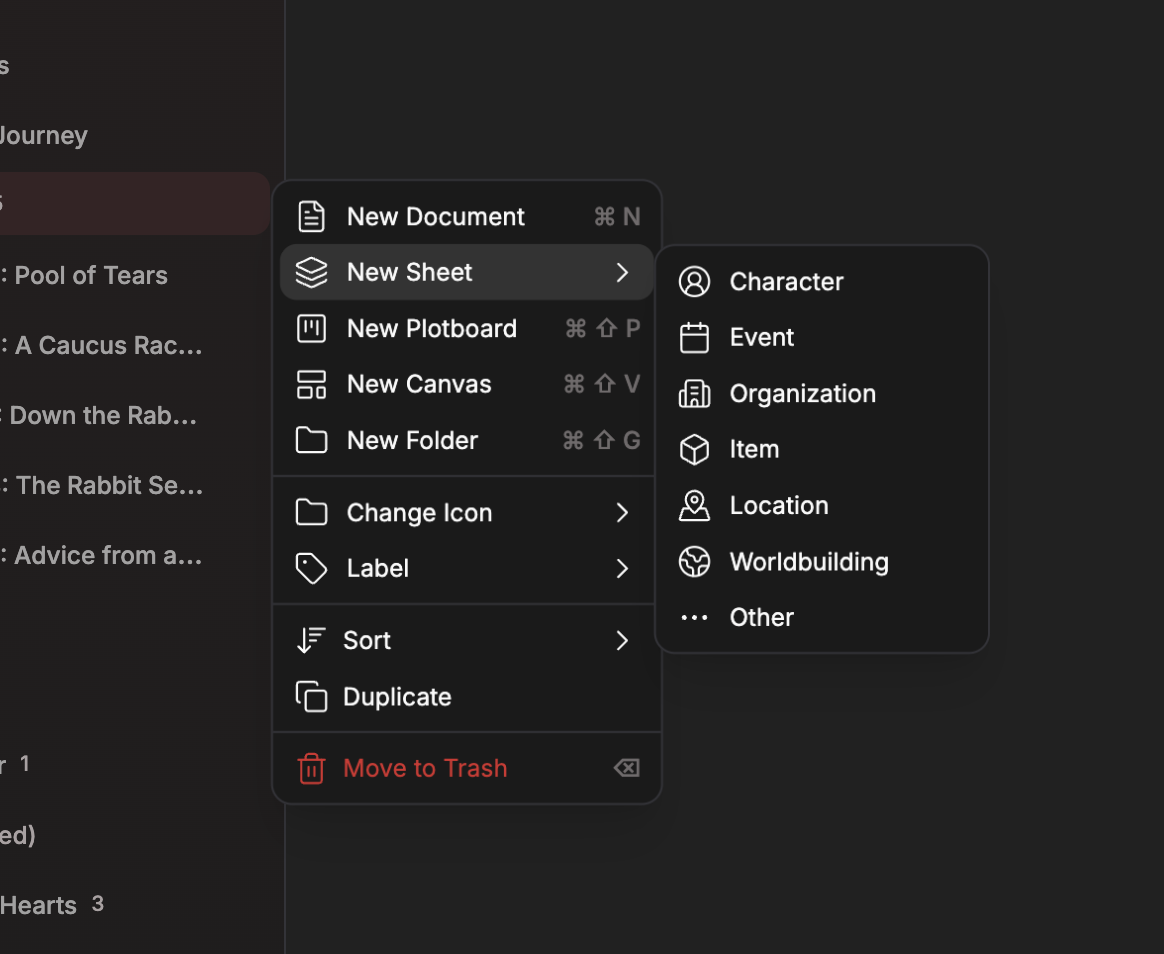
New → Sheet in the sidebar and category set to Character
You now have an empty sheet that will replace the old character.
Step 2: Copy content and properties
- Open the old character and open the new sheet (e.g. in two panes or tabs).
- Copy the main content from the character’s body/editor into the sheet’s editor (copy–paste).
- Copy the properties:
- For each text (or similar non-link) property on the character, add the same property on the sheet and paste the value.
- For link-type properties (documents, characters, plotboards, folders), add the same property on the sheet but do not paste raw IDs—you will reconnect them in the next step.
If the character had a portrait or other media, re-add or re-upload them on the sheet if the UI supports it.
Step 3: Reconnect link-type properties
Properties that can be connected to other files (e.g. “Related Documents”, “Related Characters”, “Related Plotboards”, “Related Folders”) must be reconnected on the new sheet:
- Same target: If the linked file is unchanged (e.g. another document or a sheet you didn’t migrate), use the sheet’s “link”/“connect” UI to link again to that same file.
- Migrated target: If the linked file was another character you migrated to a sheet, link to the new sheet instead of the old character.
Do this for every link-type property so the new sheet has the same relationships as the old character (pointing to the correct, current files).
🚨 Step 4: Update references to the old character (important)
Anything that pointed to the old character must be updated to point to the new sheet instead. Otherwise you’ll have broken links or links to a deprecated file.
Check and update the following:
| Where | What to do |
|---|---|
| Canvas | Any canvas node or card that links to the old character should be updated to link to the new sheet (change the linked file from the old character to the new sheet). |
| Plotboard | Any plot part or plotboard that mentions or links to the old character should be updated to mention or link to the new sheet. |
| Documents | In the document editor, character mentions that referenced the old character should be updated to reference the new sheet (edit the mention so it points to the new sheet). |
| Backlinks | Other files that link to this character (documents, sheets, plotboards, etc.) will show up as backlinks. In each of those files, change the link from the old character to the new sheet. |
| Sheets & characters | Any sheet or character that has a “Related Characters” (or similar) property pointing at this character should be edited to point at the new sheet instead. |
| Tasks | If a task is linked to the old character file, update the task to link to the new sheet. |
| Relationship graph | If you use the relationship graph, ensure relationships involving this entity now use the new sheet instead of the old character. |
After this, the old character is no longer referenced. You can keep it for a while as a backup or delete it when you’re sure everything uses the new sheet.
Summary
- Deprecated: Character file format. Recommended: Use a sheet with character category.
- Migration: Create sheet (character category) in the same folder → copy content and properties → reconnect link-type properties → update all references (canvas, plotboard, documents, backlinks, other sheets/characters, tasks, relationship graph).
- Caution: Every place that referenced the old character must be updated to the new sheet; otherwise links will be broken or point to the deprecated file.
If you have any questions, contact team@pensiv.so or join our Discord.