新着情報

ペンシブのアップデートと改善について。

v1.0.12desktop

Five new plugins

Calculator, Date Calculator, Unit Converter, Paragraph Analysis, and Status Window are now in the community gallery. Sheets can share tags and inherit fields, and writing time counts once across every open window.

Five plugins are now available in the community gallery, covering the small calculations a manuscript keeps interrupting you for.

Five new plugins

  • Calculator — a four-function calculator with memory keys and a short history. You can copy the result or insert it into the line you are writing.
  • Date Calculator — works out ages, the span between two dates, and date arithmetic. It shows the weekday for any date, and both Korean age reckonings alongside completed years.
  • Unit Converter — converts length, weight, area, volume, temperature, speed, and time. It also covers the traditional East Asian units that period fiction uses, which you can switch off if you don't need them.
  • Paragraph Analysis — breaks a manuscript down paragraph by paragraph into narration, dialogue, monologue, and special dialogue. It classifies by the opening punctuation, so Korean, English, and Japanese manuscripts all read correctly.
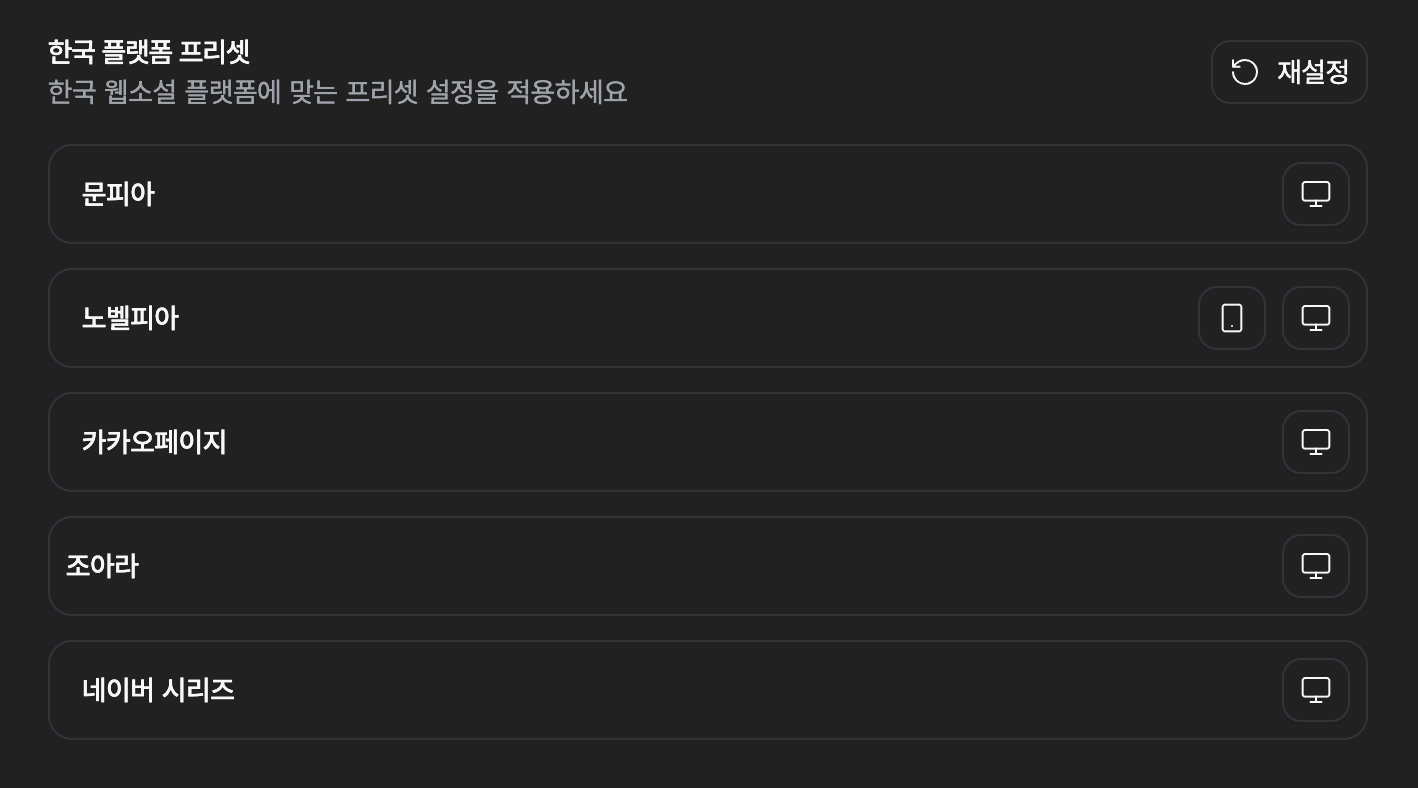
  • Status Window — builds the stat blocks web novels print into the prose. Values carry forward from the chapter you last set them in, changes are marked with growth arrows, and six presets are copied into your own storage for you to rewrite.

Calculator, Date Calculator, and Unit Converter dock in the side pane of any file — document, sheet, plotboard, canvas, folder, or task — and can float over the text instead.

Shared tags and inherited fields on sheets

When you tag a sheet, pensiv now suggests the tags that other sheets using the same field already carry. A cast list no longer collects three variations of the same role.

A sheet created under another one inherits its parent's fields, with the values left empty.

Writing time across windows

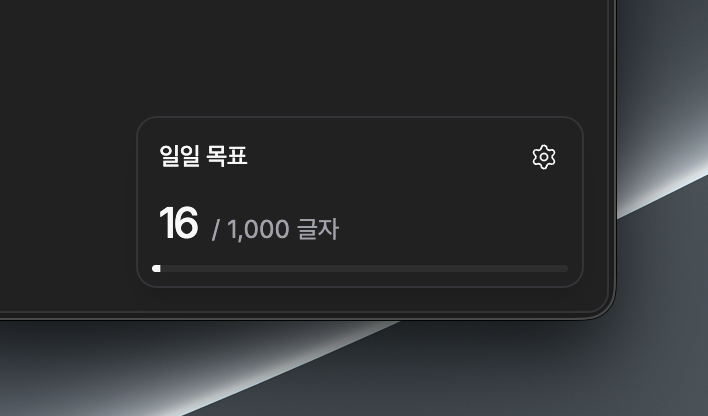
Writing time is now shared across every open window. Draft in one window and outline in another, and both count toward the same session. Your daily goal sees all of it.
Tracking plugins can also set where the day starts. Set it to 5am and a session that runs past midnight is counted as a single day.
Plugin improvements

Plugins can add their own buttons to the pane header, next to the built-in ones, on desktop and mobile.

You can install a plugin from a folder or a file, and publish it to the community from the same window.

Formatting added by a plugin now stays in the document even when the plugin isn't installed. A file written with a plugin you don't have opens, edits, and saves with its formatting intact.


  • Calculator, Date Calculator, Unit Converter, Paragraph Analysis, and Status Window plugins
  • Tag suggestions from other sheets that use the same field
  • New sheets inherit their parent's fields, with values left empty
  • Writing time shared across open windows
  • A day boundary that tracking plugins can set, for writing past midnight
  • Plugin buttons in the pane header
  • Install a plugin from a folder or a file, and publish it from the same window
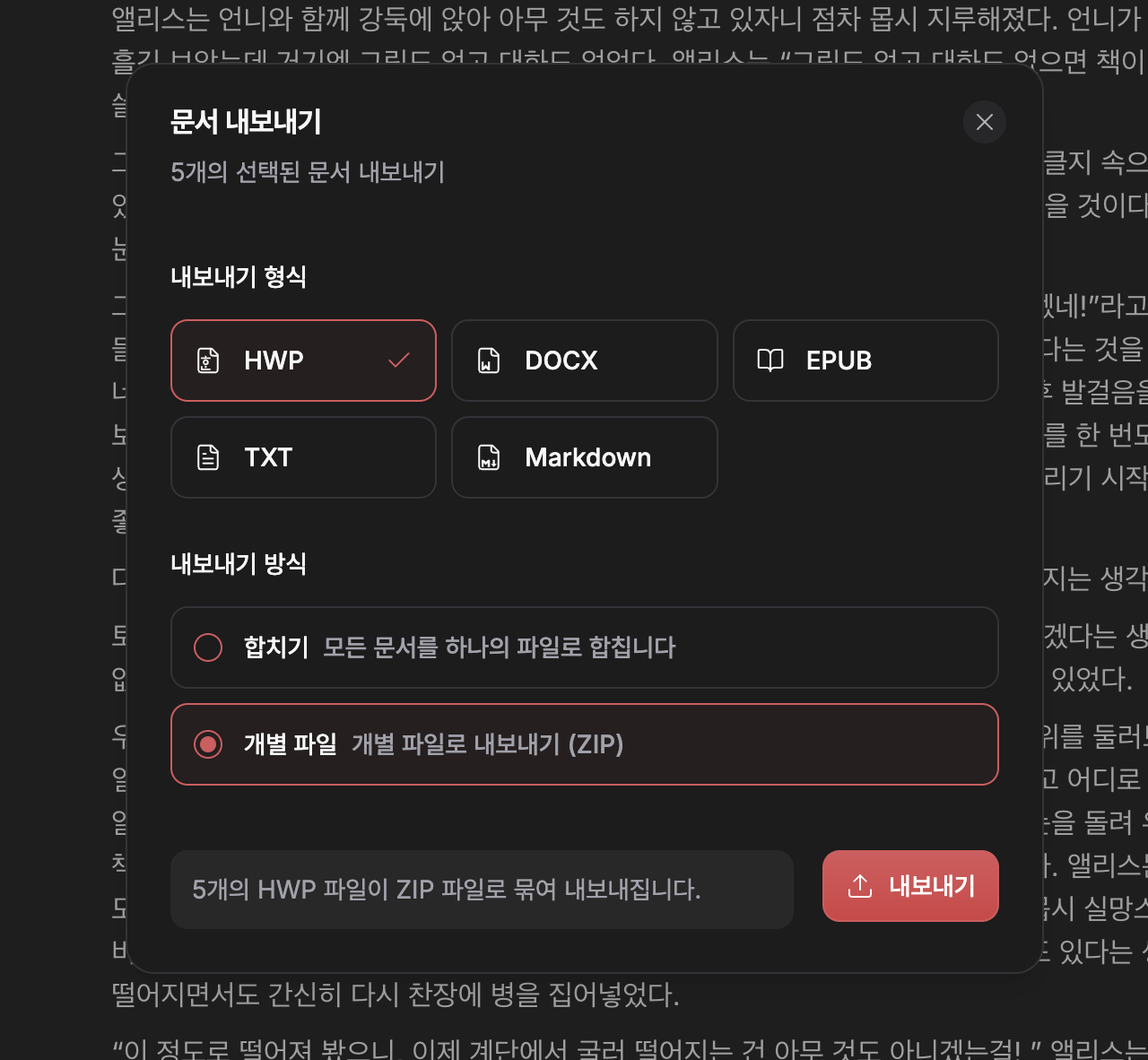
  • Folder titles as headings when exporting several files at once

  • Edits are recorded even when no session was open, so a break no longer loses the words after it
  • Changing plans goes through the billing portal instead of starting a second subscription
  • A cancellation scheduled for the end of a period now shows as scheduled
  • Typing is lighter in long documents

  • Clicking upgrade twice no longer starts two checkouts
  • The Windows title bar lines up with the window again

  • Formatting added by a plugin survives without the plugin, but a plugin that draws its own canvas nodes still has to be installed for those to appear.
  • Plugins appear in the community gallery as they are published, so a newly announced one may take a moment to show up.
v1.0.12desktop

Plugins

pensiv takes plugins. Install one from the community, or write the thing nobody has built yet.

Plugins

Plugins

Anything pensiv doesn't do, a plugin can now add. Side panes, slash commands, canvas nodes, graph filters, sections in analytics. What a plugin is allowed to touch is something you decide when you install it.

Installing

Settings has a community gallery now. Browse what other people have published and install it right there, or install a file you were handed.

The timer, daily goal, and document goal are plugins installed the same way. There's no shelf of built-ins sitting underneath; they run in the same place, under the same rules, as everything else.

Whether plugins update themselves at launch is a toggle. With it on, updates that ask for nothing new go in quietly, and anything that wants more access waits until you've looked at it.

Where a plugin shows up

It puts a button in the header of a document, folder, canvas, plotboard, or task, and opens a side pane from it. A plugin declares which screens it belongs on, so it doesn't turn up where you have no use for it.

In documents and sheets it adds commands to the slash menu. Its commands never knock the built-in ones out of the way, and they appear the moment you enable the plugin rather than after a reload. A plugin that changes the editor itself is scoped the same way, to documents or sheets or tasks, so something written for prose never reaches into your sheets.

On the canvas it draws its own kind of node, added from the toolbar, by dropping a connector, or from the right-click menu. In the relationship graph its filters sit beside the built-in ones, kept per machine so uninstalling a plugin doesn't take the filters you set with it. Analytics gets plugin sections drawn like the rest of the page.

How far it reaches

A plugin says up front what it needs. Reading your writing, changing the project, using the clipboard, talking to one particular address: each is asked for separately, and you see the list before it installs. A plugin that asks for nothing installs without a prompt.

Requests to the outside are sent by the app on the plugin's behalf. That gets a plugin past walls a web browser would put in its way, and it also means a request to an address the plugin never named doesn't leave at all.

Writing one

If the thing you want doesn't exist yet, write it. How to build one is written down, and there's a sample plugin published to take apart. The button below hands Claude that material before you start.


  • Install a plugin from a file, or straight from the community gallery in settings
  • Browse, install, and update from the community gallery
  • Update at launch, if you turn it on. Updates that want more access wait for you
  • Plugin buttons and side panes on document, folder, canvas, plotboard, and task headers
  • Plugin commands in the slash menu, in documents and sheets
  • Plugin editor extensions, scoped screen by screen
  • Plugin-drawn canvas nodes, added from the toolbar, a connector, or the right-click menu
  • Plugin filters in the relationship graph, kept per machine
  • Plugin sections in analytics
  • Plugins can read the selected text and open a project file
  • Plugin requests go only to the addresses the plugin named

  • Plugin buttons and panes follow the same rules on mobile as on desktop
  • A plugin picks its header buttons per kind of pane
  • Cleaner layout in the community gallery and the install dialog
  • The timer plugin links to its own page

  • A bad plugin drawing no longer takes the editor down with it
  • Slash commands from a plugin show up as soon as you enable it, without reopening the document
  • Mobile plugin buttons and panes honour the same file-type and view-mode rules as desktop

  • A plugin only talks to the addresses it named. Everything else is stopped by the app, not by the plugin.
  • Automatic updates cover updates that want no new access. Anything asking for more waits for you to review it.
  • Editor extensions are scoped per screen. A plugin written for documents won't run in sheets or tasks.
  • Graph filters are kept per machine, so they don't travel to your other devices.
v1.0.9desktop

Canvas images, file previews, and Notion import

Images drop straight onto the canvas, and file nodes show the document inside them. Plus Notion import, sync you can watch, and search folded into the command palette.

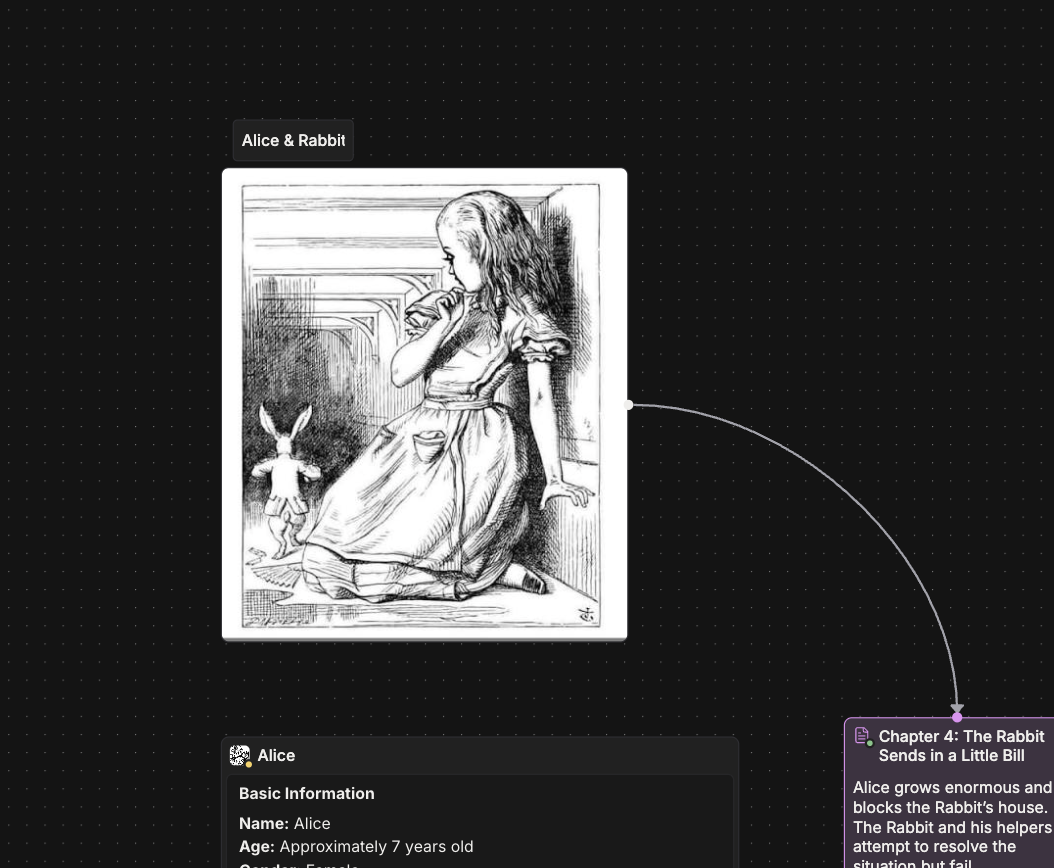
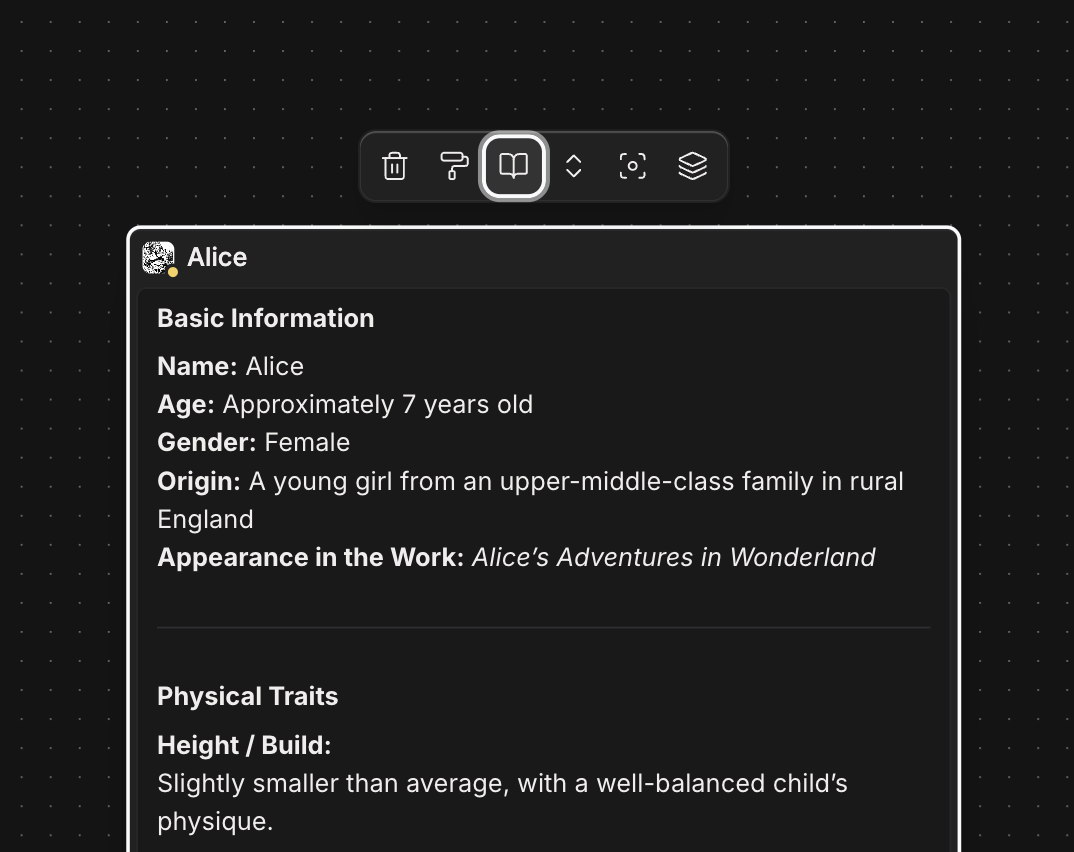
Drop an image onto the canvas — it lands as a node you can caption, fit, and swap

Drop an image onto the canvas — it lands as a node you can caption, fit, and swap

Two things changed on the canvas. Images are first-class now, and a file node can show the actual file.

Images, dropped in

Drag one in, paste it, or pick it from the toolbar. It lands as a real node — a stand-in while it uploads, the image itself the moment it's there. Resize and the aspect ratio holds. Type a caption on the node and it updates as you type.

Choose how it sits in its box — contain, cover, or fill — and replace the image without losing the node's place, its size, or the edges running into it.

File nodes that show the file

A document node rendering its own body, right on the board

A document node rendering its own body, right on the board

A file node used to show a title and a description. Now a document or sheet node can render its own body instead — the real content, typeset the way the editor would.

Toggle it per node from the selection toolbar, or set the default for every canvas in Settings → Canvas. Nodes you've flipped by hand keep their own setting.

Move in from Notion

Export your Notion workspace as HTML — include everything, create folders for subpages — and open the zip in pensiv, on desktop or mobile.

It arrives as a real project, not a pile of files:

  • A page with subpages stays a document and keeps them as children
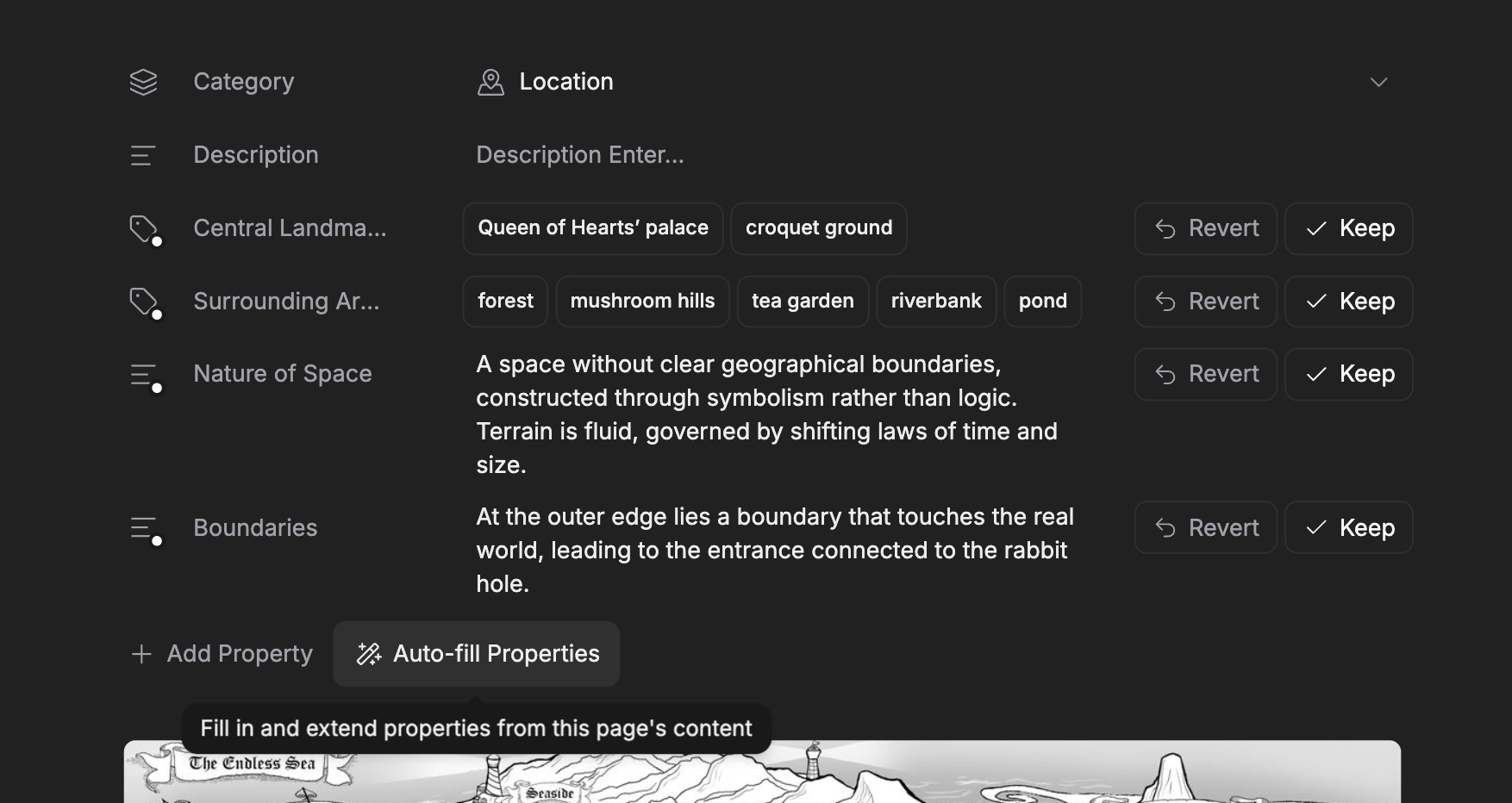
  • A database becomes a folder, and each row a sheet that keeps its properties
  • The Status column becomes a real status; select and multi-select become tags
  • Page emoji map to icons, and images come across with the page
  • Links between pages become mentions, both directions

Sync you can watch

A sync status card now sits in the project pane: where sync stands, when it last finished, how many changes are waiting, and a button to run it now.

Underneath it, the parts that used to fail quietly:

  • A stalled sync worker is caught and discarded, so the next sync isn't stuck behind it
  • A push that fails keeps its changes queued for the next attempt instead of dropping them
  • A project that failed to sync no longer loads as an empty view
  • Edits still in the buffer are flushed when the app quits or crashes, and when you switch files mid-edit

Local Mode is now Cloud Sync Off — same setting, clearer about what it actually means.

Search, in the palette

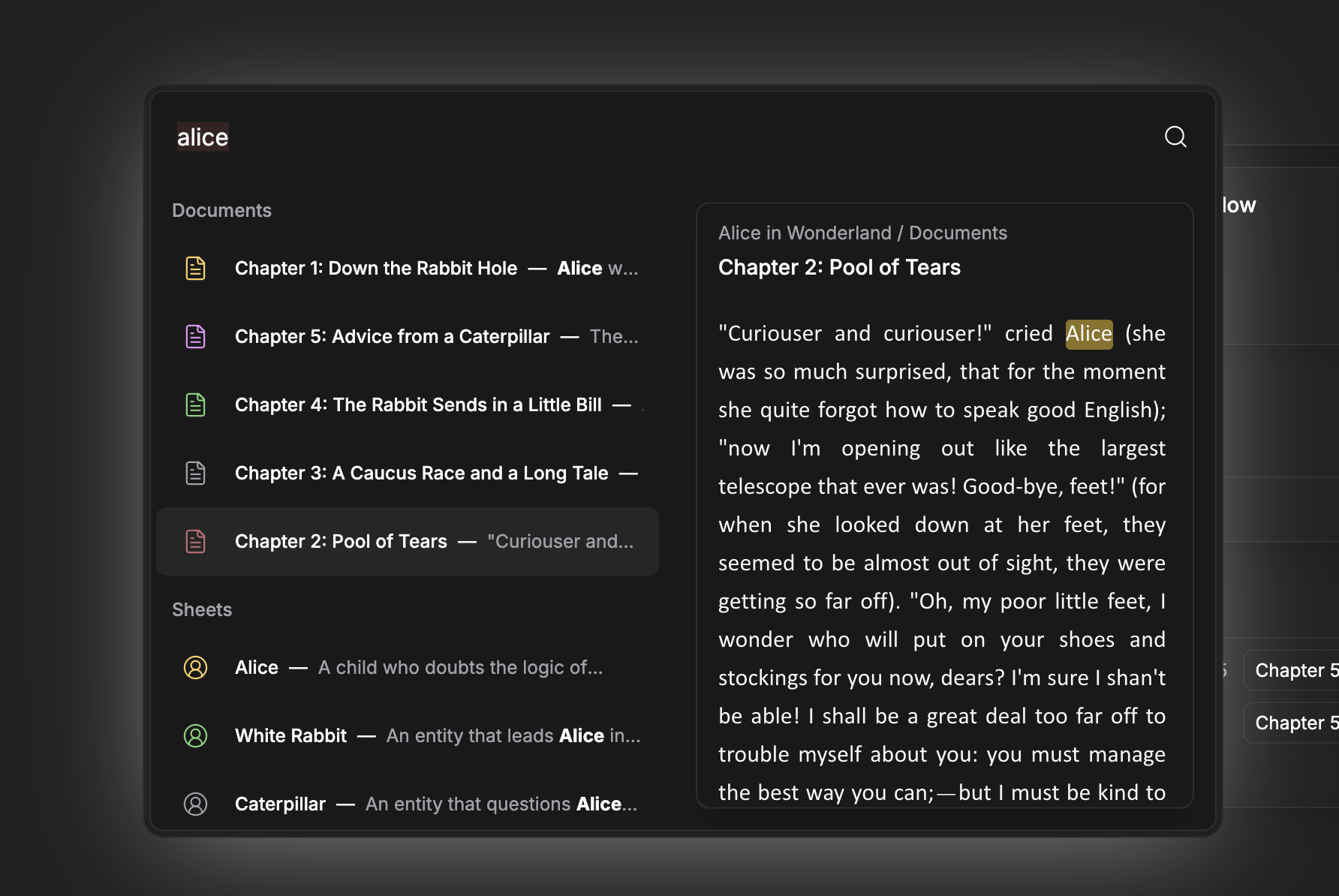
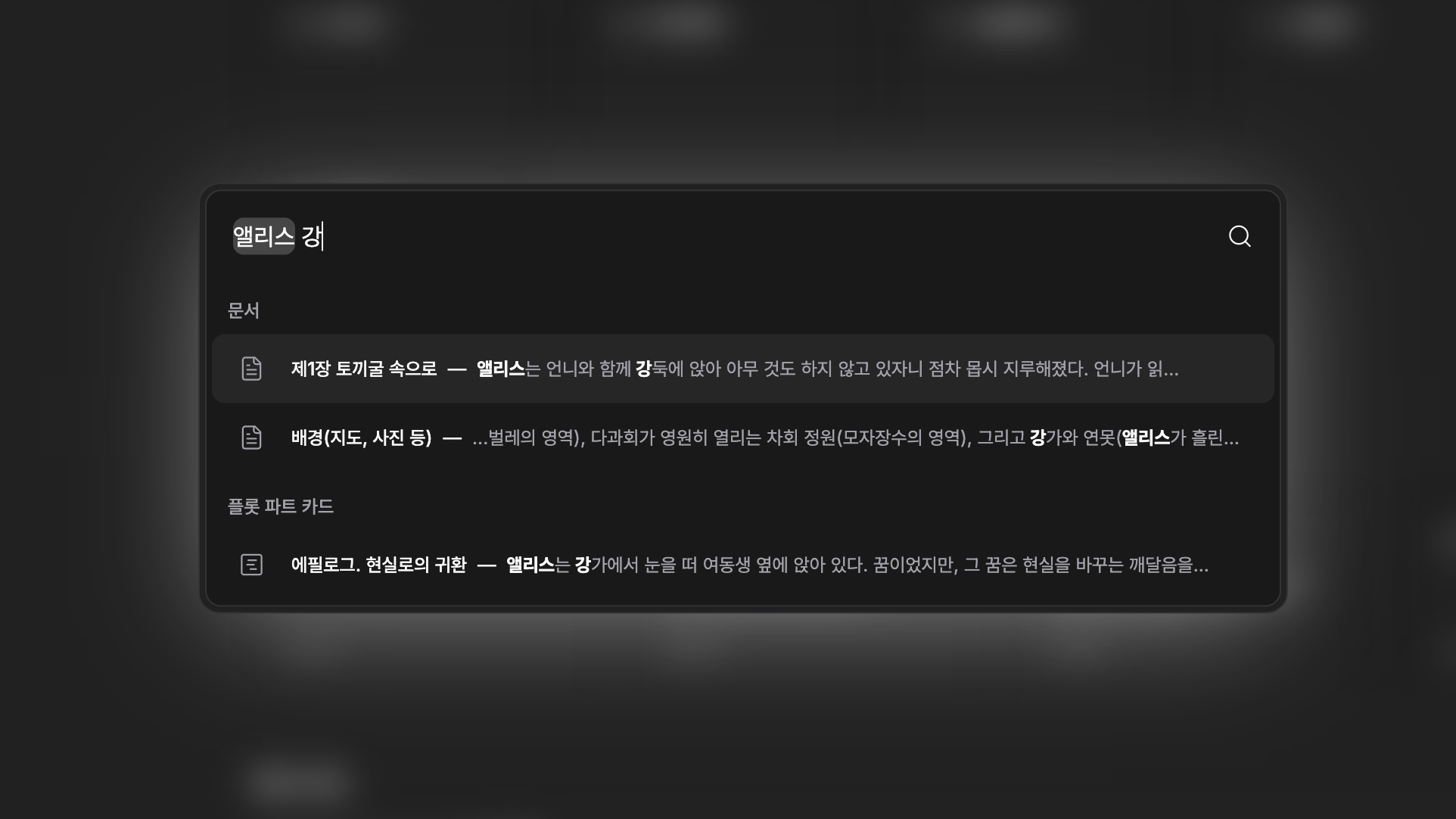
The separate search page is gone; the command palette does the job. Type once and you get commands, files, settings, and matches from inside your writing in a single list.

  • IME-safe — Korean, Japanese, and Chinese composition no longer eats keystrokes
  • Content search knows CJK from Latin and runs when it's worth running
  • File notes are searchable too, with matches highlighted when you jump in
  • Hanja conversion credits its dictionary (National Institute of Korean Language, CC BY-SA 2.0 KR)

Everything else

Select text and make a sheet out of it — mentions repoint to the new sheet, so nothing breaks. Multi-select in folders, with bulk duplicate, remove, and status change. The graph gains node previews, coloring by label or status, and prominence and halos so a busy graph still reads. Side panes dock right or bottom. Claude Opus 5 joins the agent's models. Themes apply the instant the app opens, with no flash of the default palette.

On mobile and tablet, dropdowns became bottom sheets throughout, the editor gained a zoom sheet, and tabs slide instead of jumping.


  • Canvas image nodes — drag, drop, paste, or pick from the toolbar; a stand-in holds the spot while the image uploads
  • Live captions on image nodes, edited on the node itself
  • Image fit — contain, cover, or fill
  • Replace an image while keeping the node's position, size, and edges
  • File node content preview — document and sheet nodes render their own body, per node or by canvas default
  • Notion import on desktop and mobile — pages, databases, statuses, tags, emoji, images, and page links
  • Sync status card — state, last synced, pending changes, and sync now
  • Create sheet from selection, with mentions repointed to the new sheet
  • Folder multi-select and bulk actions — duplicate, remove, change status, with keyboard shortcuts
  • File notes search with in-note highlighting, reachable from the command palette
  • Graph node previews and color source (label / status / none)
  • Side pane docking — right or bottom, with a default in settings
  • Claude Opus 5 in the agent
  • File date tooltips in the project tree
  • Include or drop titles when exporting several files as one

  • Command palette absorbs the search page — commands, files, settings, and content in one list
  • IME-safe input in the palette for Korean, Japanese, and Chinese
  • Script-aware content search — full-content search runs only when the query warrants it
  • Local Mode is now Cloud Sync Off, with a clearer warning dialog and a sync tab on phones
  • Stalled sync runs are discarded instead of blocking every sync after them
  • Failed pushes stay queued for the next sync
  • Pending edits flush on quit, crash, and window close
  • Analytics now covers AI review and spell-check usage alongside writing activity
  • Relationship graph — prominence scaling, halos, and cleaner label ink
  • Themes apply from cache at launch, with no flash of the default palette
  • Copy button on code blocks; Find & Replace keeps its panel state
  • Bottom sheets replace dropdown menus across mobile headers and settings
  • Sliding tab indicator, editor zoom sheet, and a Notion-style suggestion sheet on mobile

  • A Notion database row opens and retries as the sheet it became, not as a document
  • Switching files mid-edit no longer lets a queued write land on the wrong document or sheet
  • Very large documents write in chunks instead of failing on memory
  • A project that failed to sync no longer loads as an empty view
  • Images with expired links are re-signed before they render
  • Breadcrumb and tab overflow handling on mobile headers

  • Notion import expects the HTML export with "include everything" and "create folders for subpages" turned on.
  • Links to pages outside the import are dropped; every link inside it becomes a two-way mention.
  • File node content preview covers documents and sheets. Canvas and plotboard nodes keep showing their description.
  • The per-node content toggle wins over the canvas default, so nodes you set by hand stay where you put them.
v1.0.9desktop

An agent that helps you write

The writing agent is out of beta. Build mindmaps and plotboards from a prompt and search your whole project for context.

The pensiv writing agent is out of beta. Not a chatbot bolted onto the side, but a partner that knows what you've already written and builds and edits alongside you.

Ask for a mindmap

"map the magic system as a mindmap" — nodes and links, dropped onto the canvas. Not a picture. A real mindmap you keep editing.

Plotboards work the same way

"lay out the first arc as a plotboard" — plot cards, parts, and the relationships between them, built on an actual plotboard. Everything the agent makes is a real, editable file.

Search your whole project

"Where did I first hint that she can't swim?" The agent searches your documents, sheets, and cards, finds the passage, and points to where it lives. Answers are grounded in your own writing.

Beyond that, the agent drafts into documents and sheets, keeps character relationships current, and edits in place in the file you're on.

Plan limits, tuned

  • Free monthly AI reviews: 20 → 12. The 3-a-day cap and paid plans are unchanged.
  • Spell-check now has a daily limit. A generous per-day paragraph cap. Most sessions won't come close.
PlanAI reviews / monthSpell-check paragraphs / day
Free121,000
Basic603,000
Pro20010,000
Pro+500Unlimited
Ultra1,200Unlimited

Everything else

Hangul (HWP) export runs without an internet connection now, and it's 99% faster. Beyond that: checklists in documents, language selection in settings, community galleries for themes, plugins, and templates, a rebuilt analytics view, and the Gemini 3 Flash model in the agent. Split-view editing and very large documents are steadier, too.


  • Writing agent — out of beta, for all users
  • Build a canvas mindmap from a prompt — nodes and links dropped onto the canvas
  • Build a plotboard from a prompt — plot cards, parts, and relationships, as a real editable file
  • Project-wide context search — ask in plain language, get answers grounded in your own documents, sheets, and cards
  • Answers cite the source passage so you can jump straight to it
  • Agent drafts into documents and sheets and keeps character relationships current, and makes in-place edits in the file you're on
  • Gemini 3 Flash model in the agent
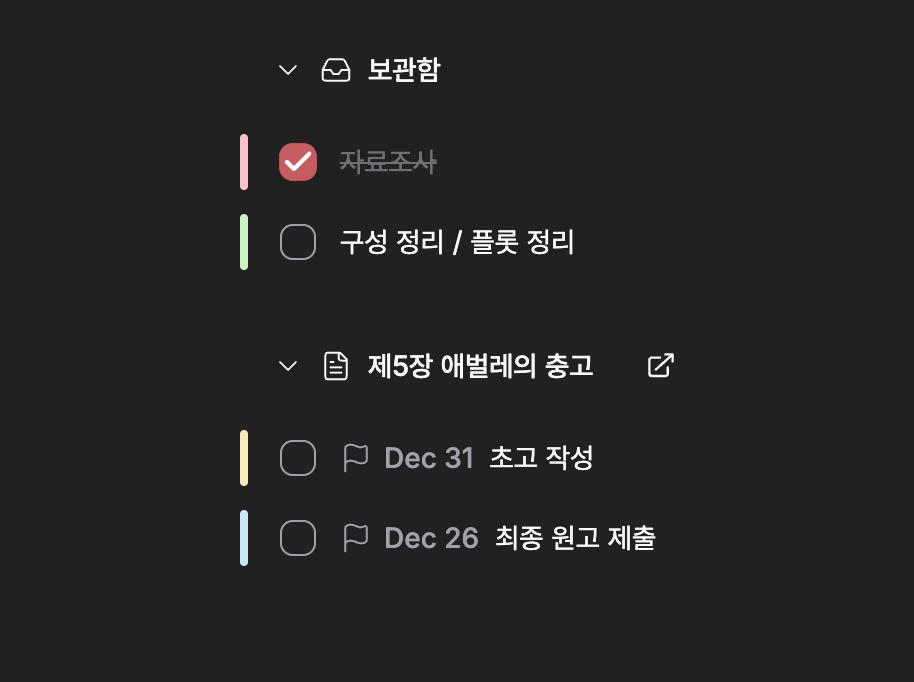
  • Checklists — task lists with items in documents
  • Community galleries for themes, plugins, and templates
  • Language selection in Appearance and Profile settings
  • New daily spell-check limit with generous per-plan caps

  • Hangul (HWP) export — converts offline, 99% faster, and keeps mention underlines
  • Free monthly AI reviews adjusted from 20 to 12 (daily cap unchanged)
  • Steadier multi-pane / split editing — a single writer with a live mirror keeps panes in sync
  • More reliable handling of very large documents (chunked read and write)
  • Analytics rebuilt with accent-colored charts and animated numbers
  • Fuzzy ranking in the command palette, with multi-language support
  • Cleaner theme colors on status surfaces
  • App update checks don't stack up — no overlapping requests
  • Settings search with deep-linking, and AI review available on mobile

  • Canvas nodes no longer carry transient UI state across panes
  • Plot part card mentions persist immediately, preventing data loss
  • Editor content is normalized before syncing, reducing drift between panes
  • Spell-check navigation and error handling hold up

  • The agent reads your project as context; its answers point back to your own writing.
  • Agent performance may vary depending on the model you choose.
  • Heavy usage is mostly a matter of high token usage. Long conversations and large contexts consume more.
  • Everything the agent creates (plotboards, canvases, cards, relationships) is a real file you keep editing, not a preview.
  • The Free plan's daily AI review cap (3 a day) is unchanged; only the monthly total moved from 20 to 12.
  • Spell-check's new daily limit is aimed at keeping the feature fast for everyone; higher plans have larger or unlimited caps.
v1.0.9desktop

Version history, now for everything you make

Sheets, canvases, and plotboards keep their past versions now, the same as documents: one history dialog, live previews, and a restore you can undo. Plan limits on how many versions a file keeps are clearer, and the writing agent paces itself, shows your usage, and lets you top up credits.

Version history, everywhere now

Sheets, canvases, and plotboards now save and restore past versions, just like documents.

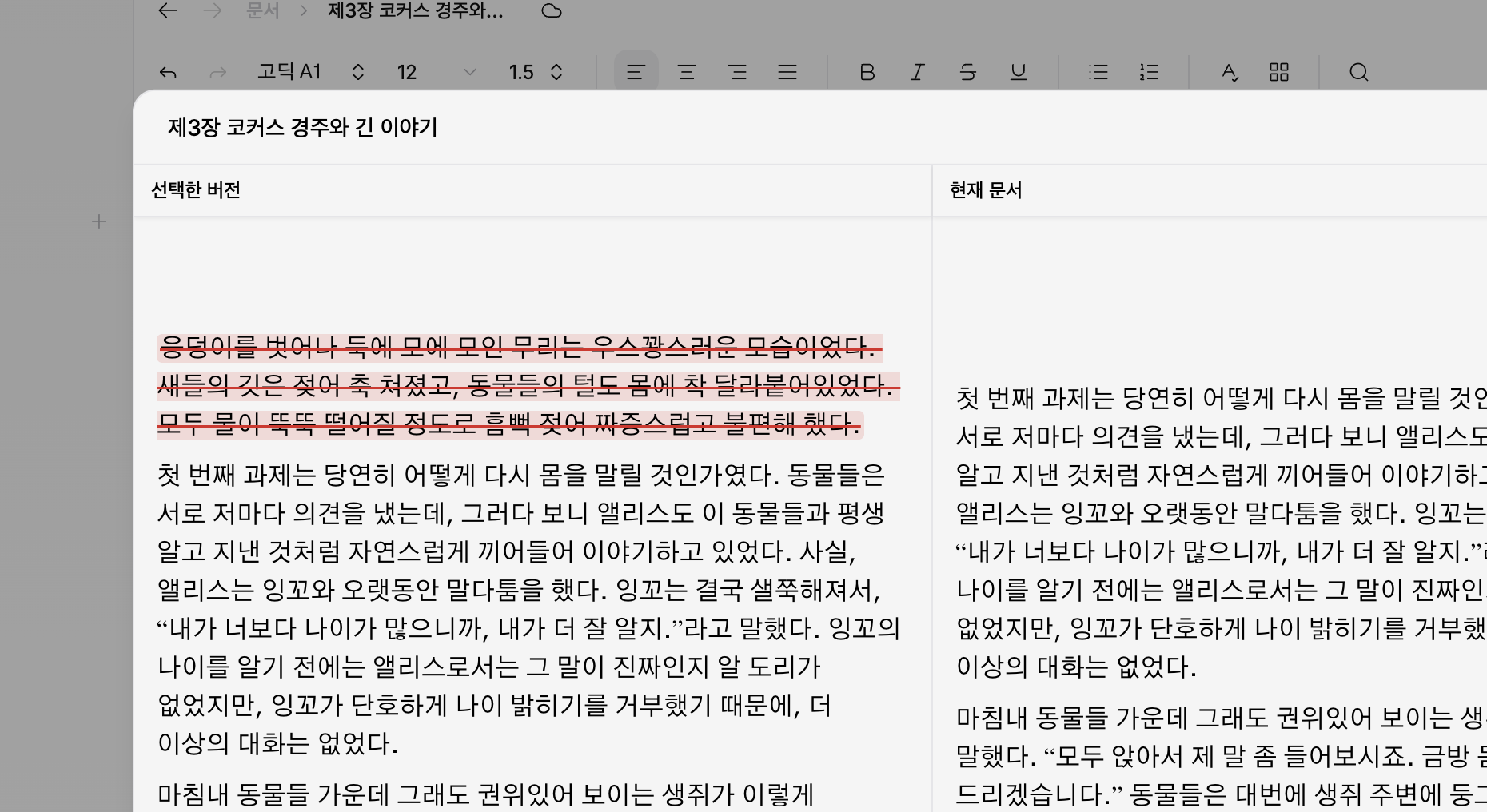
Open history from any of them and you get the same view. A live preview on the left renders the older version exactly as the editor would, and the version list sits on the right. Versions save on their own once your edits settle into a real change, and you can save one by hand whenever you want to mark a moment. Each version is complete on its own.

Restoring is one click and a single confirm: the change lands instantly and the dialog closes, with no waiting on the network. A restore saves your current state as a version first, so it is always undoable, and the mentions and relationships between your notes and cards stay intact.

  • Version history for sheets, canvases, and plotboards, alongside documents
  • One shared history dialog: live preview on the left, version list on the right, with automatic / saved filters
  • Previews render exactly like the real editor, mention chips and all
  • Save a version by hand, and delete the ones you don't need
  • One-click restore. Instant, undoable, and safe for your references

Clearer limits on what history keeps

With history now spanning four kinds of files, the plan limits are easier to read. Each file keeps a set number of its most recent versions, and free and basic plans also have a time window. Both apply together.

  • Free — last 10 versions, within 60 days
  • Basic — last 100 versions, within 365 days
  • Pro — last 200 versions, no time limit
  • Pro+ / Ultra — last 500 versions, no time limit

On the Free plan you can still browse older versions; restoring is limited to the retention window, with an upgrade prompt when you reach past it.

And more in this release

The writing agent also handles heavy use better now. When you've been running the agent hard it paces itself, taking a short breather and telling you when it'll be ready again, and a usage banner keeps your session, daily, and monthly usage in view with the time until each resets. If you run low, you can buy credits right from the agent. The agent's input also gained a model cost comparison so you can see how much each model spends before you pick one.

Elsewhere: exporting a document, sheet, plotboard, or canvas now confirms with a toast and lets you open the saved file straight away (with a new Android saver that drops exports into your public Downloads folder). The project home gained create-new cards and crisp mini previews for each kind of file, Appearance settings show live theme previews, and moving between settings and your project now animates with smooth view transitions.


  • Version history for sheets, canvases, and plotboards, joining documents. Each version is a full snapshot you can browse and restore
  • A shared history dialog with a live preview and version list, and automatic / saved filters
  • Save a version by hand and delete individual versions
  • Per-file version limits by plan (10 / 100 / 200 / 500 / 500) alongside the retention window
  • Usage pacing for the writing agent, with a ready-again countdown
  • A usage warning banner for session, daily, and monthly usage
  • Buy credits directly from the agent when you run low
  • A model cost comparison in the agent input
  • Create-new cards and mini file previews on the project home
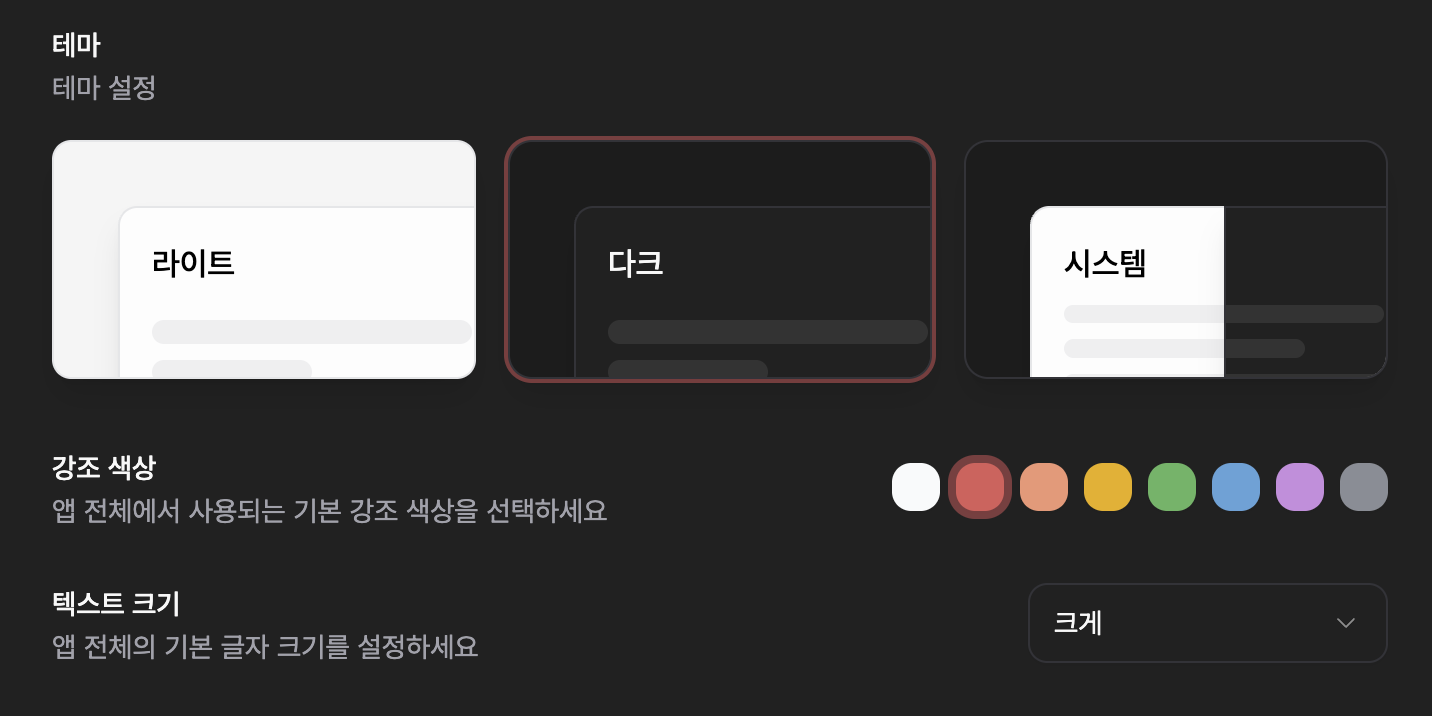
  • Theme previews in Appearance settings
  • Save-to-Downloads on Android, with open-the-file feedback after export

  • Live previews in history render exactly like the real editor, with each version's own mentions
  • Restore is instant, undoable (your current state is saved first), and keeps your mentions and links intact
  • Clearer model cost descriptions
  • Export success toast with one-tap open of the saved file
  • Smooth view transitions between settings and project views
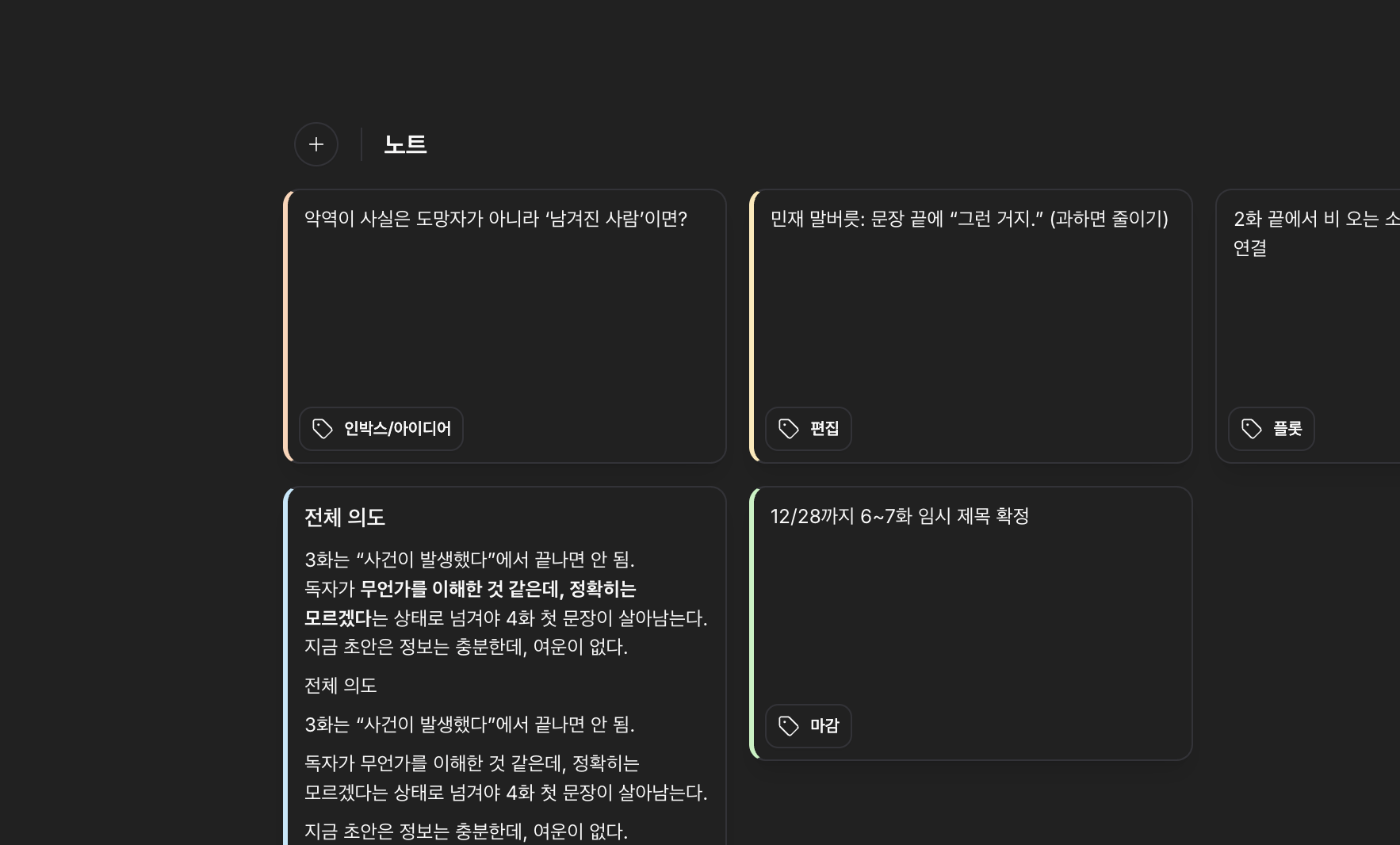
  • Masonry layout with resizable cards in the note list
  • Tidier Trash entry in the sidebar and a cleaner command palette
  • IME support for Korean input in formatting marks
  • Steadier agent citations, and a stabler editor caret when closing search or returning to the app

  • Restoring saves your current state as a version first, so you can always undo it.
  • On the Free plan, versions past the 60-day window can be viewed but not restored. Upgrade to restore them.
  • Version history is kept per file, and reordering alone (dragging without changing content) doesn't create a version.
v1.0.9desktop

Page view — write on something that feels like paper

A new paginated Page view that gives your writing the feel of real paper, formatting marks, per-document editor settings, a fuzzy command palette, and a long run of speed-ups and fixes.

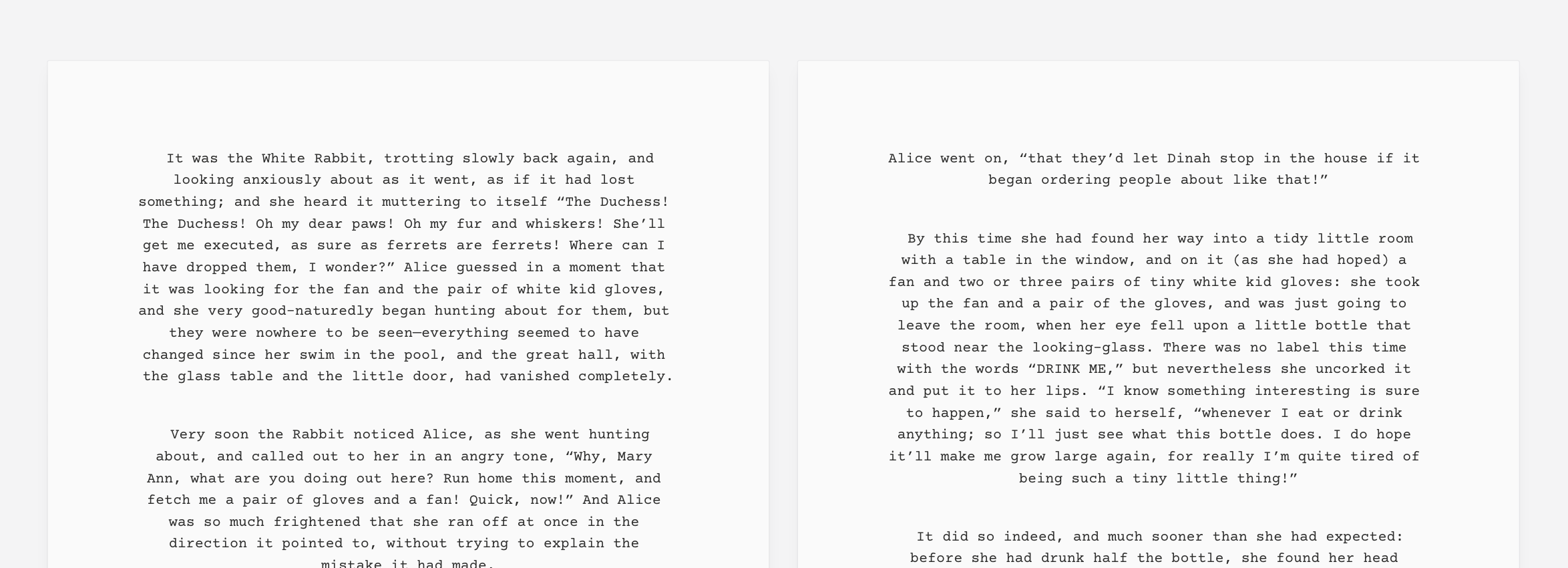
Page view — your document laid out like real paper, page by page

Page view — your document laid out like real paper, page by page

Page view — write on something that feels like paper

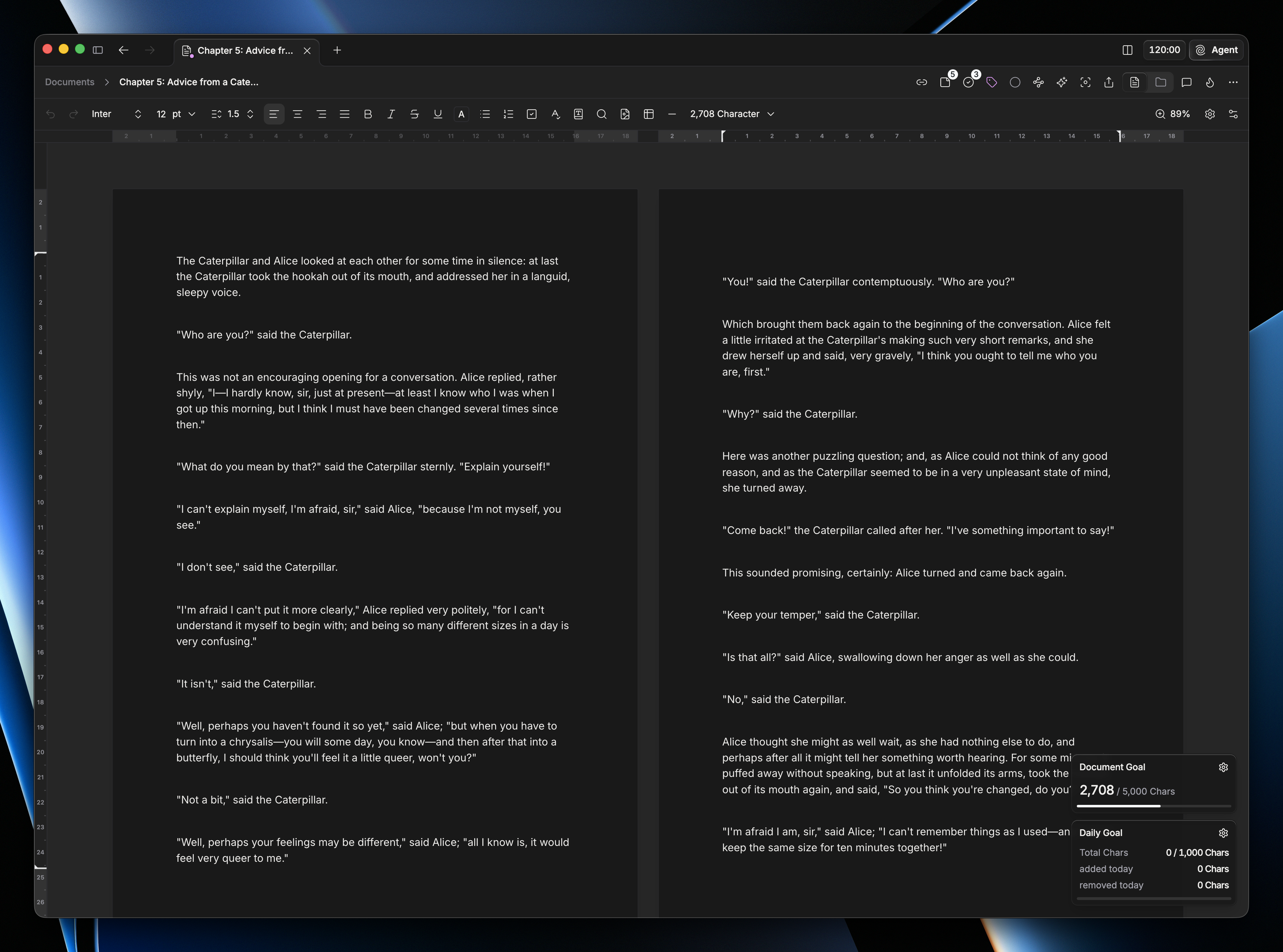
pensiv's editor has always kept a clean, uninterrupted flow. Now, when you'd rather see your writing land on an actual page, switch to Page view. It lays your document out page by page, with margins, page breaks, and page numbers, so it reads and edits the way it would on paper, much like other docs editors.

It isn't a locked, pixel-perfect print preview (pensiv stays fast and fluid), but if the tactile sense of paper is what helps you write, it's there whenever you want it. And you edit right on the page: type, paste, use your IME, undo and redo, select across the margins, and move with your keyboard, all inside the paginated layout.

  • A new Page view that paginates your document like real paper
  • Full editing on the page: typing, IME, paste, undo/redo, and keyboard navigation
  • Paper size and page number settings under Page view
  • Reads and edits like other docs editors, while staying fast

Formatting marks

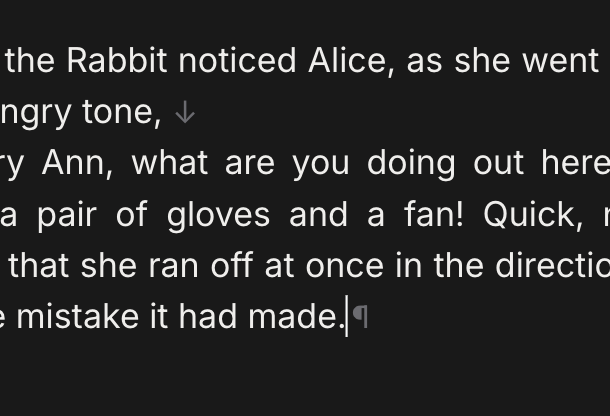
Formatting marks — paragraph marks (¶) and hard breaks (↵)

Formatting marks — paragraph marks (¶) and hard breaks (↵)

See the marks behind your text. Turn on formatting marks to reveal paragraph marks (¶) and hard breaks (↵) right where they sit. Handy when you're tidying up structure. Pick the paragraph symbol and hard-break style to your taste.

  • Toggle formatting marks to reveal paragraph (¶) and hard-break (↵) marks
  • Choose the paragraph symbol and hard-break style

And a lot of smaller wins

Alongside the headline, this release steadies the everyday. Your editor settings now split into shared appearance and per-document settings, so a change in one place stops surprising you in another, and zoom is tracked more carefully alongside them. The command palette gained fuzzy search, so a few loose letters still find the command you meant. Reading mode in documents and sheets holds up better. Under the hood, task lists in writing-agent replies get real checkboxes, leftover data from permanently deleted items is cleaned up, and older browsers keep up. A run of small speed-ups and fixes across the app rounds it out.


  • A paginated Page view that gives your document the feel of real paper
  • Full editing in Page view: typing, IME, paste, undo/redo, and keyboard navigation
  • Paper size and page number settings for Page view
  • Formatting marks that show paragraph (¶) and hard-break (↵) marks
  • Fuzzy search in the command palette
  • Custom checkboxes for task lists in writing-agent replies

  • Editor settings split into shared appearance and per-document scopes, with steadier zoom
  • Editor-setting changes show up right away instead of waiting on a save
  • Reading mode in documents and sheets is more reliable
  • Smoother Ctrl / ⌘ + wheel zoom
  • Refreshed writing-agent action button
  • Cleaner code-block styling
  • Leftover data from permanently deleted items is cleaned up
  • Older browsers keep up with the app
  • Safer link handling for quotes and parentheses in citations

  • Page view isn't a locked, pixel-perfect print layout. It gives your document the feel and pagination of paper while staying fast to edit.
  • Formatting marks are off by default; turn them on under editor settings when you want them.
v1.0.9desktop

Writing Stats enters beta — plus PDF export for everything you make

A new account-wide writing dashboard, PDF export across documents, sheets, plotboards, and canvas, arrow-key navigation, and a long list of fixes.

Your writing activity across every project, in one dashboard

Your writing activity across every project, in one dashboard

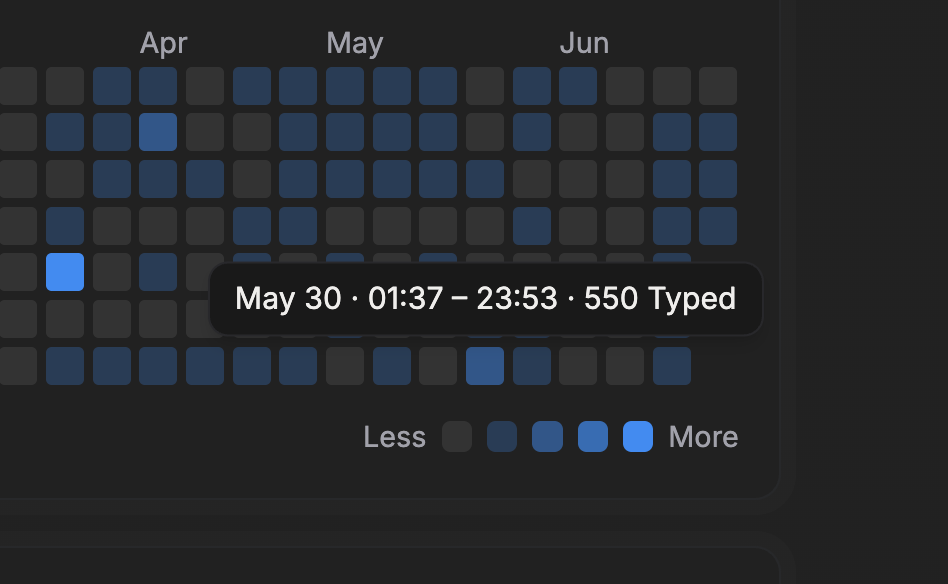
Writing Stats — your whole writing life, in one place (beta)

Your writing spans every project, and now your stats do too. Open Settings → Writing Stats to find a new account-wide dashboard that pulls your activity together across all your projects. Switch between all-time, 30-day, and 7-day ranges and read it at a glance: total characters, sessions, active days, your peak hour, current and longest streaks, and this month's active days. Below that sit a year-long activity heatmap, an activity by day breakdown, an activity over time chart you can split by project or by file, and a share by file type with your top files by volume.

  • An account-wide dashboard across every project, with all-time / 30-day / 7-day ranges
  • Stat cards for total characters, sessions, active days, peak hour, current & longest streak, and this month
  • A year activity heatmap and an activity by day breakdown
  • An activity over time chart, split by project or by file
  • A share by file type and your top files by characters written

Writing Stats is in beta, and we'd love your feedback as we refine it.

Export to PDF — for everything you make

Your work no longer stops at the app's edge. Export to PDF from anywhere in pensiv, not just from documents but from sheets, plotboards, and canvases too. Plotboard exports carry through the details that matter, including part-card extras and mentions, and images are pulled in cleanly so what you see is what you get on the page.

  • PDF export for documents, sheets, plotboards, and canvases
  • Plotboard exports include part-card details and mentions
  • Cleaner image handling so pictures come through intact

And a lot of smaller things

Move through the project tree with your arrow keys — up and down to walk items, left and right to fold and unfold. Spell-check works across every editor now, including the sheet editor, and holds up better when you switch documents or edit quickly. Version history was rebuilt to cover every kind of item, not just documents, and trash and delete are more reliable and quieter than before. On desktop, pensiv now asks before quitting while work is still saving, so nothing slips away on the way out.


  • Writing Stats (beta) — an account-wide writing dashboard in Settings
  • All-time / 30-day / 7-day ranges, a year activity heatmap, and activity by day
  • Activity over time, split by project or by file
  • Share by file type and top files by volume
  • PDF export for documents, sheets, plotboards, and canvases
  • Arrow-key navigation in the project tree
  • Drag-and-drop reordering for settings tabs
  • Spell-check in the sheet editor

  • Version history rebuilt to cover every kind of item, not just documents
  • More reliable, quieter trash and delete handling
  • Quit confirmation on desktop while work is still saving
  • Spell-check now runs across every editor and is steadier during quick edits and document switches
  • Spell-check pane opens more calmly with the extra animation removed
  • New items now inherit the section they're created in
  • Smoother scrolling to matches in find & replace
  • Steadier typing with a Korean IME: word replacement and bracket auto-close no longer interrupt input
  • Better focus handling for newly created items

  • Writing Stats is in beta. Some numbers build up as you keep writing, and account-wide totals settle in over time.
  • PDF export layout can vary a little by content, and very large canvases and plotboards are paginated to fit.
v1.0.9desktop

Canvas, smoother to work with

Connection handles, an edit spotlight, and nodes that answer to the touch. The canvas got a round of usability work, with more on the way.

Drag to connect nodes, and focus on the one you're editing

Drag to connect nodes, and focus on the one you're editing

Canvas, easier to handle

The canvas is where you spread your ideas out, so it should feel effortless under your hands. Connecting, editing, and shaping nodes all work differently now. Hover a node and drag straight from its connection handle to wire it to another. Edit a node and an edit spotlight dims the rest, so the one in front of you stands out. From the soft response as you press a node to the subtle drift of the background, the whole surface answers your fingertips.

  • Connection handles, so you link nodes by dragging straight from one
  • An edit spotlight that draws your eye to the node you're editing, plus a cleaner right-click menu
  • Scale and splash feedback on nodes as you press, and background dots that follow your cursor
  • Edge highlighting on hover, with tidied-up line styling
  • Sharper alignment guides and snapping when moving or resizing nodes
  • Fixed node flicker on first load, for a smoother entrance

We're not done with the canvas. This round of usability work is the start, and more is coming.


  • Connection handles to link nodes by dragging straight from one
  • An edit spotlight that dims the surroundings while you edit a node
  • Cleaner right-click menu on nodes
  • Tactile node feedback with a scale and splash effect on interaction
  • Background-dot effects that respond to your cursor
  • Edge highlights, hover feedback, and refined line styling
  • Sharper alignment guides and snapping when moving or resizing nodes
  • Fixed node flicker on first load

Elsewhere

  • Item order holds steady across devices, thanks to stable sorting
  • Relation data no longer gets cleaned up by mistake during project loading and sync
  • File and folder status changes are handled the same way throughout
  • Toggle switches got sizing and interaction fixes
  • Home now opens on the Projects view by default

  • Canvas usability is what this round covers. The canvas work continues, with more features to follow.
v1.0.9desktop

The writing agent enters open beta, and a design refresh begins

The pensiv writing agent opens up for beta. A broader design and UX refresh starts too: window translucency you can dial in Appearance settings, refined chrome and toolbars, and a tidier editor.

The writing agent — open beta

We're opening the beta for the pensiv writing agent, and we'd love to build it with working novel authors. The goal isn't a chatbot bolted onto the side. It's a writing partner that lives inside your serialization workflow: keeping track of setups, character relationships, and planted foreshadowing, and thinking alongside you when you get stuck.

  • Who it's for — authors currently serializing or publishing (or with comparable experience). Any platform, any genre.
  • What you get — one month of the Pro plan (or an equivalent discount) for taking part.
  • One thing to watch — apply with the same email you use to sign in to pensiv, since that's the account rewards land in.

We'll review applications and reach out individually. Feedback is always welcome. Let's write something good together.


Make the window your own — dial translucency up or down to taste

Make the window your own — dial translucency up or down to taste

A design refresh begins

This release kicks off a broader rework of how pensiv looks and feels. We went through the app surface by surface, from window chrome and sidebars to tabs, toolbars, shadows, and borders, to make everything feel quieter, more consistent, and more at home on your desktop. The first thing out of it: you can now adjust window translucency in Appearance settings. Turn it up for a soft, glassy feel that blends into your desktop, or down for a solid, focused surface. Your call. This is just the start; more UX polish is on the way.

  • A translucency slider in Appearance settings — with a tint that lets the window pick up a hint of your accent color (acrylic on Windows, native vibrancy on macOS, falls back where the platform doesn't support it)
  • Unified borders, shadows, and backdrops across the whole UI
  • Refined window chrome on macOS (traffic-light handling) and Windows (project switcher in the title bar)
  • Animated tab transitions with rounded corners in split view and panels
  • A custom, draggable scrollbar and smoother resize handles
  • Pick your own app icon

  • Writing agent open beta for novel authors
  • Adjustable window translucency — a slider in Appearance settings with an accent tint, tuned per platform
  • Custom, draggable scrollbar
  • Courier Prime typeface and improved RIDIBatang bold rendering
  • Mobile gesture tutorial for first-time users

  • A first pass of the design refresh: unified borders, shadows, and backdrops across the UI
  • Refined macOS and Windows window chrome (traffic lights, title-bar project switcher)
  • Animated tab transitions and rounded corners in split view and panels
  • Smoother canvas mindmap auto-layout and fit-to-view
  • Steadier sheet/document sync with better conflict resolution
  • Expanded shortcuts with broader localization
  • Multi-select in the project tree
  • Plugin management and settings available on mobile

  • The agent beta is open to authors who are serializing or publishing; apply with the same email you use to sign in to pensiv so rewards land on the right account.
  • Appearance settings hold the translucency control, and it falls back where the platform doesn't support it.
  • This release starts a broader design and UX refresh, so expect more polish in the ones ahead.
v1.0.8desktop

Templates, and a library to keep them in

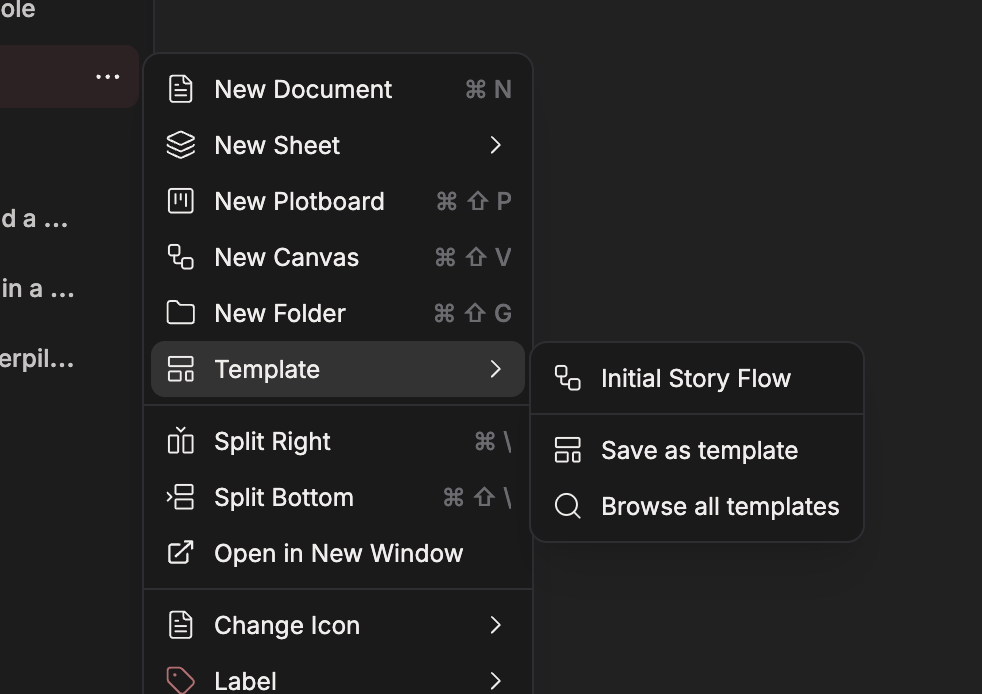
Save a document, sheet, plotboard, or folder as a template and drop it into any project. Start from the built-in templates, or publish and install them through the community.

Save any file as a reusable template and reuse it across projects

Save any file as a reusable template and reuse it across projects

Templates

You no longer have to rebuild the same structure for every project. Capture a document, sheet, plotboard, or whole folder once, then drop it into any project ready to fill in.

A character sheet with all your fields, a chapter scaffold, a worldbuilding folder: save what you've set up once and pull it out whenever you start something new.

  • Save any file as a template: documents, sheets, plotboards, canvases, and folders
  • Built-in templates to get you started right away
  • Snapshots now capture file-level notes, so your notes come along too
  • Manage your templates from one place, and install them into any project in a click

Publish and install community templates

Templates get better when they're shared. Publish yours to the community, and install templates other writers have shared instead of starting from a blank page.

  • Publish your own templates for others to use
  • Browse and install community templates straight into your project
  • Preview a template's structure before you bring it in

A library for your themes and templates

Your custom themes and templates now live together in a personal library, so anything you've made or collected sits in one place, ready to reuse across projects.


  • Templates. Save any document, sheet, plotboard, canvas, or folder as one, and install it into any project
  • Built-in templates to start from immediately
  • Community templates: publish your own, install what other writers have shared
  • A user library for your custom themes and templates
  • Snapshots now capture file-level notes
  • MCP settings tab on mobile

  • Rich-text editing for plot cards, plus bulk updates across plot and part cards
  • Hanja conversion overhaul, with detailed results, per-user preferences, and a way to cancel a conversion in progress
  • Plugin management and settings now available on mobile
  • Numeric-aware project sorting, synced with your home view preferences
  • Wake-from-sleep sync so your work catches up right after your device wakes
  • Typography toolbar keeps your selection while you adjust fonts
  • Document editor selection, text, and caret colors refined
  • Billing settings cleaned up with clearer credit balance and pricing
  • Better support for older browsers

  • Templates work across documents, sheets, plotboards, canvases, and folders, and snapshots include file-level notes.
  • You can publish and install community templates inside the app. Preview a template's structure before installing.
  • Your themes and templates sit in one personal library, ready to reuse across projects.
v1.0.8desktop

MCP support, an education discount, and drag-to-reorder toolbars

Connect your workspace to Claude and other AI assistants over MCP on the Pro plan and up, take 50% off with the education discount, and drag any toolbar into the order you want.

Connect pensiv to your AI assistant with MCP

Connect pensiv to your AI assistant with MCP

Connect pensiv to your AI assistant

pensiv speaks MCP (Model Context Protocol) now. Connect your workspace to Claude, Cursor, or any other MCP client and it works inside your projects.

Open dashboard.pensiv.so → Integrations → MCP, create a Personal Access Token, pick what it is allowed to do, then paste it into your MCP client's settings (Claude Desktop, Cursor, and more).

Once connected, your assistant can:

  • Read your project tree, documents, sheets, plotboards, and canvases
  • Create and edit documents and character / world sheets
  • Update or delete the content you allow
  • Leave comments for you to read later

MCP needs a Pro plan or higher. A token covers one workspace, carries only the read, create, update, and delete permissions you gave it, and you can revoke it at any time from dashboard.pensiv.so.


Education discount

50% off any pensiv plan for students and educators

50% off any pensiv plan for students and educators

Students and educators get 50% off any plan.

Email team@pensiv.so from your school address and we'll apply the discount to your account. No other proof required.


Drag toolbars into the order you want

Toolbars are yours to arrange. Grab an item and drag it into place, in the document, sheet, canvas, plot, and folder headers and the typography toolbar. Switch off the items you never use. The order you land on holds across groups and sessions.

While we were in there, tooltips got a pass.

  • A "magic move" animation that blur-crossfades between labels
  • Better positioning, so a tooltip doesn't sit on top of what you're pointing at
  • Tooltips stay hidden while you're dragging or working elsewhere
  • Less redrawing, so the motion holds up
  • Reduced-motion settings respected throughout, for anyone who prefers calmer animation

  • MCP (Model Context Protocol) support: connect Claude and other AI assistants to your workspace from dashboard.pensiv.so, on the Pro plan and up
  • 50% off any plan for students and educators, by emailing team@pensiv.so from your school address
  • Drag-and-drop toolbar reordering across document, sheet, canvas, plot, and folder headers and the typography toolbar
  • Per-item visibility toggles for toolbar customization

  • Zoom the document editor with Ctrl / ⌘ + wheel
  • A hand tool for panning the canvas, and area select
  • AI Review streams more smoothly and shows when it is thinking
  • Scrivener import brings over labels, statuses, synopses, and notes
  • Settings sit in a cleaner card layout
  • Haptics you set per device on mobile, plus a button that dismisses the keyboard from anywhere
  • Word counts break down by category in the editor
  • Sign-in tokens refresh more reliably, so you get signed out less often

  • MCP connections need a Pro plan or higher; manage them from dashboard.pensiv.so.
  • Students and educators can email team@pensiv.so from a school address for 50% off any plan; no other proof is required.
  • Plugins are next. They are not part of this release, but they are on the way.
v1.0.7desktop

pensiv mobile is now on the App Store and Google Play

pensiv for iOS and Android is out of beta. Download it directly from the App Store or Google Play, or scan the QR code on our download page.

Image

Now available on both stores

pensiv mobile has graduated from beta. The TestFlight invite is out of the picture; install it straight from the official stores.


Scan and go

On a desktop? Open the download page and hit Scan QR next to iOS or Android. Point your phone's camera at the code and it'll take you straight to the right store.

The same QR shortcut works for the web app, so you can pick up writing on any device.


  • The public App Store release replaces existing TestFlight builds. Move over to the store version to keep getting updates.
  • Sign in with the same account across desktop, web, iOS, and Android; your projects stay in sync.
  • For the latest editor, sign-in, and collaboration changes, see the v1.0.7 desktop release.
v1.0.7desktop

Email and Apple sign-in

Sign in with an email and password, or with Apple. Mentions, Focus Mode, and the rest of the editor extensions got a pass, and parts of it are still settling, so tell us what breaks.

New sign-in methods

New sign-in methods

Email sign-in

Sign in to pensiv with an email and password now.

Finish email verification after signing up to keep the account safe,
and check the linked address in profile settings.

  • Email and password sign-in and registration
  • Email verification flow and guidance
  • Steadier loading and status on the sign-in screen
  • The linked email reads clearly in profile settings

Sign in with Apple

Sign in with Apple works too.

Use your Apple account on iOS and Android,
and the screen moves cleanly when you switch between sign-in methods.

  • Sign in with Apple (iOS and Android)
  • Loading and transitions handled per sign-in method
  • Groundwork for iOS in-app purchases and subscription management

Editor extension improvements

We went over the editor extensions: mentions, Focus Mode, paste handling, and quote behavior.

Parts of this are still being refined and may misbehave in some setups.
If something looks wrong, send it through Settings → Send feedback. That helps a lot.

  • Focus Mode improved
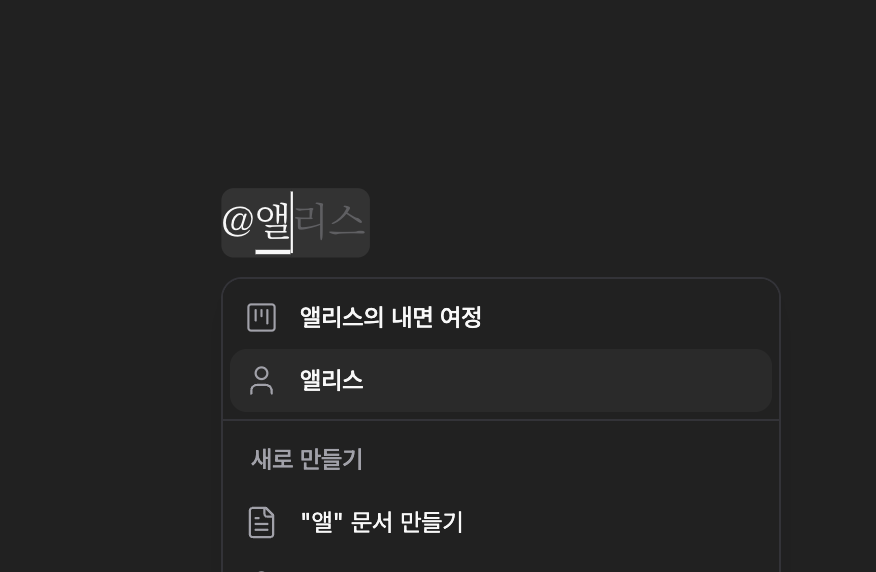
  • Better mention and slash command suggestions and behavior
  • Empty lines survive a paste that keeps formatting
  • Smart quotes and auto-close handled more carefully
  • Tidier context menu icons and selection handling in the document editor
  • More capable find/replace
  • Calmer search highlight animation and styling
  • Spell check holds up when a document's content is replaced

Comments, goals, and tasks

Comments and writing goals got the same treatment.

  • Comment panel sync and thread sorting in documents and sheets
  • Daily and document goals, now synced across your devices
  • More word counter options, wired into the goal widget
  • A better task list popover and task creation flow

Mobile and tablet editing

On mobile and tablet, the keyboard and the editing toolbar behave better.

  • Steadier toolbar animation while the keyboard comes and goes
  • Tablet toolbar width and layout adjusted
  • Edge swipe opens the side panels more reliably
  • Better tap and keyboard input handling

  • Email and password sign-in with email verification
  • Sign in with Apple (iOS and Android)
  • Focus Mode
  • More word counter options and document goals
  • Drag-and-drop image upload in project and profile settings
  • Drag-and-drop portrait upload

Editor and export

  • Better mention and slash command suggestions
  • DOCX export handles mentions and normalizes Korean filenames
  • Empty lines survive a paste that keeps formatting
  • Auto-close and smart quotes handled more carefully
  • Sharper find/replace and search highlighting
  • Spell check in the character editor

Comments and collaboration

  • More reliable comment handling and panel sync in documents and sheets
  • Tidier comment bottom sheet and side pane layout and sorting

Project and UI

  • Cleaner folder and file breadcrumbs
  • File status changes and file notes side pane behave better
  • File status dropdown updates properly
  • AI review handles errors better while the response streams in
  • Error reports carry the app version and build info

Goals and tasks

  • Daily goals sync across devices
  • Smoother task list and task creation interactions

Sign-in and subscriptions

  • Smoother sign-in loading, handled per sign-in method
  • Groundwork for iOS in-app purchases and subscription management
  • Groundwork for Android in-app purchases

  • Mentions, Focus Mode, paste handling, and quote behavior all changed recently. If something feels off, send it through Settings → Send feedback.
  • Email sign-in needs the email verification finished before you can use it fully.
  • Sign in with Apple may not appear on every device and OS version.
  • iOS in-app purchases and subscription management arrive on iOS first.
  • For folder and Scrivener import, themes, comments, and other changes from May 23, see the changelog.
v1.0.7desktop

Custom themes, inline comments, and a steadier sync

Make your own theme or bring one in from a URL, and leave inline comments on documents. Import, the table of contents, and sync all got a pass.

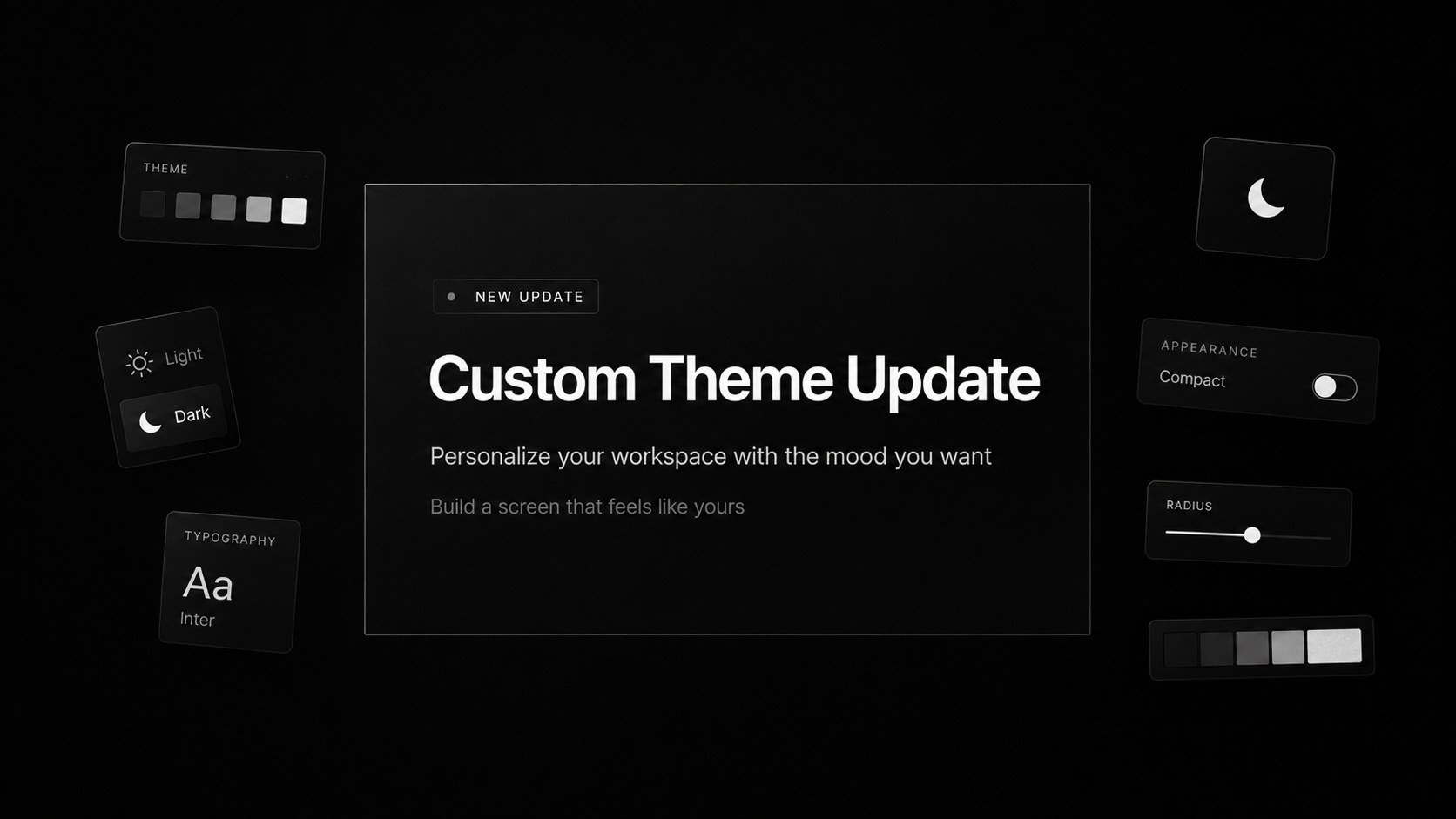
Custom themes

Custom themes

Custom themes

Make your own theme, or bring one in from a URL or a file, and apply it across pensiv.

In the Theme Creator on the homepage you adjust colors, fonts, and light or dark appearance with a live preview,
and the finished theme opens straight in the app or goes out to the community.

  • Create, apply, and manage custom themes
  • Install themes from URLs and deep links
  • Theme Creator shortcut in Preferences
  • Tidier appearance and theme settings

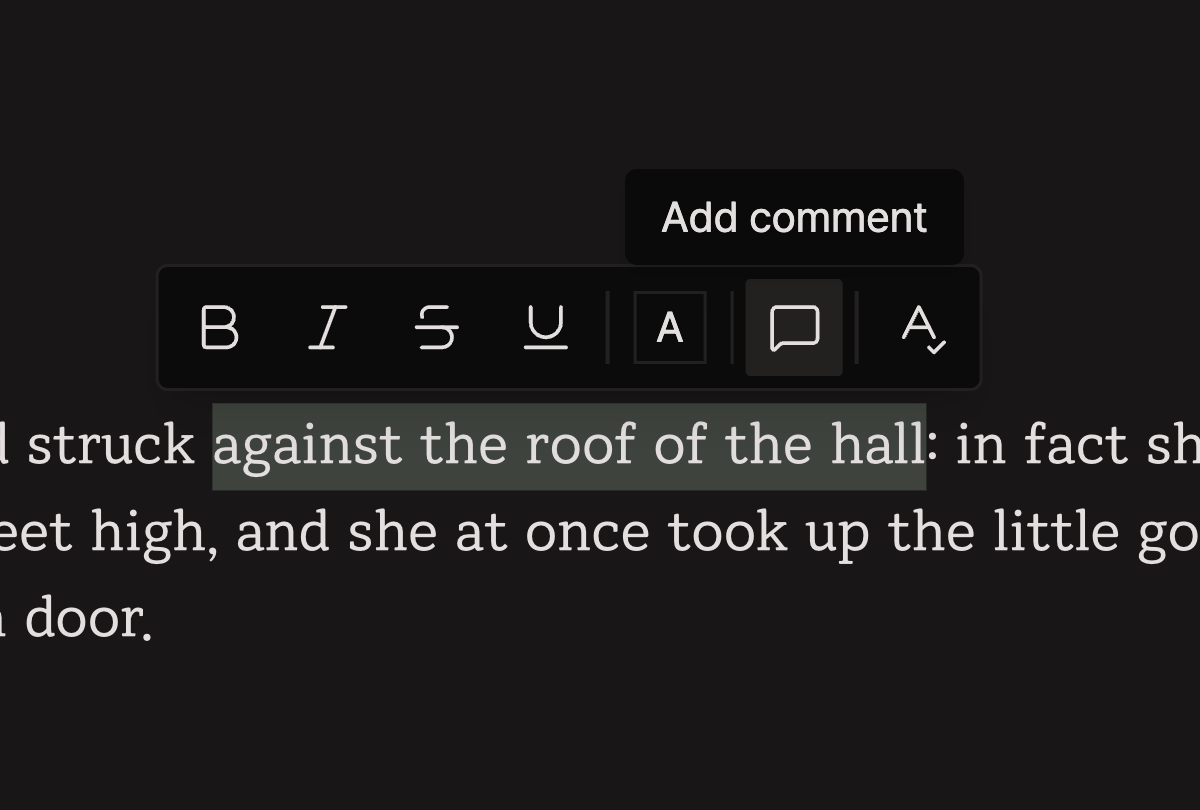
Inline comments

Inline comments

Inline comments

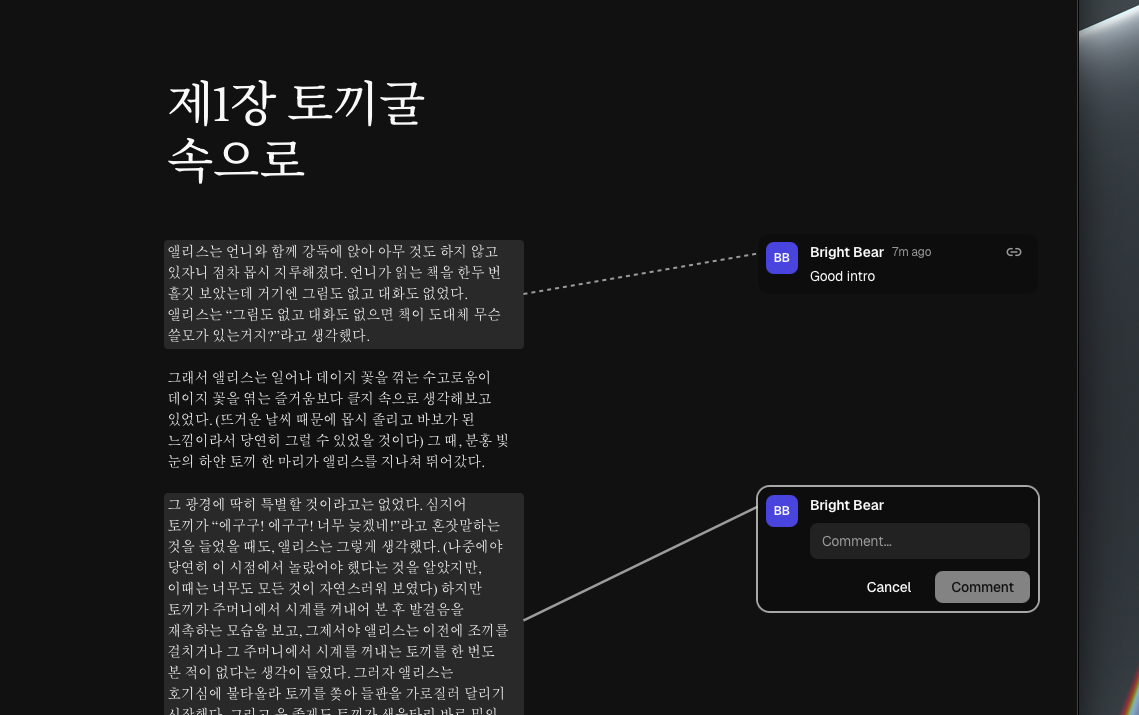
Leave inline comments right on the text of a document and keep the conversation going in threads.

The comments panel (bottom sheet) holds the whole thread,
and resolved comments are toned down so they stay out of the way while you read.

  • Inline comments on document text
  • Comment panel (bottom sheet) for thread review
  • Resolved comment styling
  • Open comments from the document header

Project and document import

Bring folders and Scrivener projects into pensiv.

Open a document that was saved in a different version and a compatibility check and notice come up first,
so you can carry on safely.

  • Folder and Scrivener project import
  • A check for documents saved by a different version
  • Better handling when an import fails or errors out

Long-document navigation and editing

The table of contents and the editing tools around it got a pass, aimed at long documents.

  • Table of contents scroll rail for quick navigation
  • Toggle table of contents in editor settings
  • Multi-page document view and page settings
  • Typewriter mode and auto-close for quotes and brackets
  • RIDIBatang font and line spacing controls
  • Scroll navigation (quick jump) in documents and sheets

Sync and stability

Project sync is faster and steadier.

Merging is careful with edits in progress now, so nothing overwrites what you are typing,
and sync picks up again when you bring the app window back.

  • 2-stage hash sync for faster, more reliable syncing
  • Merge sync results without overwriting active edits
  • Resume sync when the app window is shown again
  • Clearer offline, reconnect, and sync guidance, handled in a more sensible order
  • Clearer app update notifications

  • Custom theme creation, import, and management
  • Theme URLs, deep links, and Theme Creator integration
  • Inline document comments and comment panel (bottom sheet)
  • Folder and Scrivener project import
  • Table of contents scroll rail
  • Multi-page document view and page settings
  • Reopen closed tabs in split view (with keyboard shortcut)
  • Send feedback from Settings (bottom sheet)
  • Canvas layer ordering (bring forward/send back) with shortcuts
  • Expand plot card content inline
  • Right-click menus on folders and items
  • Reorder the rows of a sheet's properties by drag and drop
  • Copy images from documents
  • First-line paragraph indent styling
  • Text color in the font toolbar
  • OS default right-click menu in document and sheet editors

Documents and editor

  • Faster, steadier document editor
  • Unsaved edits are harder to lose
  • Cleaner keyboard and focus handling in find/replace
  • Clearer mobile toolbar and paste guidance (keep formatting or plain text)
  • Sturdier list indent and undo/redo tools
  • Consistent line spacing, cursor color, and styles
  • The cursor and the scroll position follow you while you edit
  • More reliable IME composition input
  • Safer document area when switching typewriter mode

Sheets and table of contents

  • Tidier state and layout on the sheet detail screen
  • Breadcrumbs at the top of a sheet cost less to compute
  • Spell check runs as one flow on sheet screens
  • Less flicker when switching sheets and bottom sheets

Canvas and plot

  • Smoother, more predictable plot canvas zoom
  • Stronger highlighting and animation for canvas search results
  • Nodes snap into alignment, so placing them takes less fiddling
  • Focus behaves predictably on the canvas and on plot cards
  • Calmer drawing tool cursor and behavior

Project and sync

  • Smoother drag-and-drop in the project tree and between folders
  • New items appear in lists faster and more reliably
  • Your theme settings follow you across devices
  • Low storage warnings
  • Cache reset considers local-only projects
  • OS-safe filenames for HWP and other exports
  • Better multi-export flows, whole folders included

UI and layout

  • Cleaner split view and file header options
  • Better visual separation when side panels open (blur, etc.)
  • Side panel layout adjustments on narrow screens
  • Expanded command palette search, unified icons, faster first response
  • Esc closes layered UI more predictably
  • Sharper hover and press states on the glass-style buttons
  • Simpler layout for trash, onboarding, project creation, and the settings tabs
  • More accessible confirmation screens for deleting a project or an account
  • App build number visible in profile

Mobile and tablet

  • Consistent Android back navigation
  • More natural document zoom and scroll areas on tablet
  • Neater search panel and sidebar at tablet widths
  • Clearer camera and photo library permission prompts on mobile
  • Less awkward drag-and-drop across devices

  • Some custom theme items may render differently depending on app version.
  • Check the scope before sharing theme URLs or deep links.
  • Document comments are for project collaboration and are separate from share-link comments.
  • Scrivener import may convert some items differently depending on project structure.
  • The first sync after 2-stage hash sync may take longer than before.
v1.0.6desktop

Mobile Beta Testing Begins

The pensiv mobile beta test starts. Catch an idea wherever you are, and pick up the work you already have.

Image

Mobile beta testing begins

Hello, Writer,
This is Eric from the pensiv team.

Thank you for waiting.
The pensiv mobile beta test starts now.

We built it so you can catch an idea anywhere
and carry on from the work you already have.


Participation guide

Starting next week, we recruit and invite beta testers in phases.

If you would like to take part, apply through the button below.

  • Applications for the mobile beta are open
  • We invite a selection of the applicants
  • Everyone selected gets a separate note with the details

Beta program information

The feedback you send during the beta period
is what we improve the product from.

  • We act on what testers tell us
  • Improvements come out of how people actually use it
  • The aim is to get the quality right before the official release

  • Steadier keyboard navigation and input handling
  • Search and editing tools behave more reliably
  • Better canvas editing and interaction handling
  • Settings and interface structure tidied up
  • More consistent multilingual and text display
  • Faster and more responsive overall

  • Some features are still unstable in the beta version.
  • Invites go out in phases.
  • What you send us feeds back into the product.
v1.0.6desktop

Drawing on the canvas, tasks, and a better browser

Draw and write directly on the canvas, keep tasks and due dates in the app, and get more out of the browser. Editing is steadier all around.

Canvas drawing

Canvas drawing

Canvas drawing

Draw on the canvas directly, and put text wherever you need it. Sketch an idea out instead of describing it, and the structure shows itself.

Freehand strokes, and text you can go back and edit. Nodes resize and drag, lines connect between them and move when you adjust where they sit. Drawing interactions and the selection UI feel steadier than they did.


The browser

The browser inside the app does more now. Bookmark a page and come back to it, and keep your tabs in order more easily than before.

Split the view and research sits beside what you're writing. Panel management is better next to it, and the browser holds its state instead of losing it, with a UI that shifts around less.


Tasks and reminders

Tasks live in the app now. Give one a due date and it reminds you, so a deadline doesn't slip past. Reminder behavior holds up better too.


Editing, and everything else

Keyboard shortcuts are handled more consistently, text styling reads better, and scroll areas are faster and tidier. The settings screen and the way you move through it got restructured. Saving and data handling hold up, and so do app launch and window management.


  • Drawing on the canvas
  • Text you place and edit on the canvas
  • Tasks
  • Due date reminders
  • Better browser tabs and split view

  • Steadier browser UI, and it remembers the state it was in
  • Smoother drawing interactions and more dependable node behavior
  • More consistent keyboard shortcut handling
  • Better text styling and readability
  • Restructured settings and sidebar
  • Faster scrolling, tidier scroll areas
  • Faster and more responsive across the app

  • Drawing performance may vary depending on your environment.
  • Browser features may be affected by your network conditions.
v1.0.5desktop

In-app browser and global file search

A browser inside the app, and search that reaches every file in your project.

In-app browser

pensiv has a browser in it now.

Browser feature

Browser feature

It's more natural to write while looking at reference material, or to check external resources alongside your document, with the browser sitting in the desktop app itself. Reading and writing run as one flow, and there are fewer context switches while you work.

Open the browser from the command palette:

  • Windows: Ctrl+KOpen in browser
  • macOS: ⌘+KOpen in browser

So you don't have to search through the palette to jump to a reference.


Global file search

Search now covers every file in your project.

Global file search

Global file search

Search is no longer limited to documents. Many different kinds of items turn up in the one search flow, each result previews quickly before you open it, and you jump straight from a result into the content.


Command palette improvements

Search results in the command palette now come with a preview. Items and documents both preview better than they did, and the structure of the results is clearer as you explore them.


  • In-app browser
  • Global file search
  • Search result preview
  • Command palette preview
  • Highlighting search results on the canvas

  • More stable document editing
  • More reliable image upload and display
  • Improved automatic backup and data retention flow
  • Better multilingual handling, including Japanese support
  • Simplified and more reliable task state handling
  • Smoother sidebar behavior and layout
  • Overall performance and responsiveness improvements

  • Some file types may show up differently in search results.
  • The in-app browser may run into limits depending on your environment.
v1.0.4desktop

Focus mode, file locks, and a steadier canvas

Write in focus mode, lock a document so it cannot be edited by accident, and come back to the plot canvas where you left it.

Writing focus mode

Focus mode

Focus mode

Focus mode keeps you in the writing. Entering and leaving it runs smoother now, and the switch to full screen holds up more reliably.

While you write, the parts of the interface you are not using step back. There is less on screen to pull you out of the work.


File locking

Lock a document and some editing turns off. Unlock it when you want to write again. Useful while you are working somewhere else in the project and do not want this document changing by accident.

The locked state shows on screen, so you can tell at a glance why editing is limited.


Plot canvas

The plot canvas comes back where you left it. Scroll position restores on its own, so you are not hunting for the card you were working on, and scrolling itself runs smoother. Panning and dropping cards land where you expect.

Boards carrying a lot of data keep drawing steadily.


Scroll and input

The writing area remembers where you were scrolled to, and holds it when you switch views and come back. The page jumps less while you type. Small things all through the input flow are steadier than before.


Saving and errors

Saving and syncing are more robust. When the data connection drops, pensiv notices and says so instead of failing quietly, and a save that fails raises a notification rather than disappearing.

The unusual cases around all of this are handled more carefully.


Document compare and history

Seeing what changed in a document got easier. The compare view reads better and the history screen is clearer, and both hold up on long documents.


  • A smoother writing focus mode
  • The plot canvas returns to the scroll position you left
  • Locking and unlocking a document
  • A better document compare view
  • Filtering search results by date

  • Steadier document editing
  • Scroll position and input flow in the writing area
  • The canvas pans and places cards without drifting
  • More reliable saving and syncing
  • Clearer guidance when something goes wrong
  • Less wobble in screen drawing
  • General speed and responsiveness

  • Some editing is off while a document is locked.
  • Scroll restoration can land differently depending on the situation.
v1.0.4desktop

Plotboard settings and document search

The plotboard gets its own settings menu. Search takes email-style syntax and autocomplete, editing holds steadier, and the interface is more consistent and quicker throughout.

Plotboard settings

The plotboard has a settings menu now. Manage the plotboard's behavior and display options in more detail, and reset to the default settings when you need to. Each project runs its board its own way.

  • Plotboard settings popover
  • Plotboard settings reset
  • Card behavior and display options
  • A sturdier plotboard workflow

Document search

Document navigation and search got a pass. Finding a document is more direct, with autocomplete and a wider set of search expressions.

  • Email-style search syntax
  • Search autocomplete
  • Easier search input
  • Faster to move through search results

Editing stability

A batch of things that went wrong while you were writing are fixed. Small errors during editing and instability around input are down.

  • Steadier document editing
  • Fewer slips in input handling
  • Focus stays put while you edit
  • More reliable Undo / Redo
  • Long documents keep up with your typing

Image drag and drop

Drag an image into a document and drop it. The drop target is marked more clearly, and the image lands where you put it.

  • Image drag and drop
  • Clearer drop target
  • More dependable image insertion

Saving on exit

Closing the app carries less risk of losing work. If it closes while you are editing, the save finishes on the way out.

  • Reliable save handling on app exit
  • Better handling of unexpected exits

  • Plotboard settings menu
  • Plotboard settings reset
  • Image drag and drop
  • Email-style search syntax
  • Search autocomplete

  • Steadier document editing
  • Better document navigation and search
  • Data saves reliably on app exit
  • Tidier side panel state
  • Smoother image drops
  • A more consistent interface
  • Style cleanup
  • Faster and more responsive throughout

  • Search syntax may only work in some of the advanced search modes.
  • Plotboard settings may look different depending on how a project works.
v1.0.4desktop

Recalibrated AI review scores, and a table of contents in sheets

AI review scores read lower now, and the gaps between them mean more. Sheets build a table of contents from your headings, and the app is steadier all around.

AI review scores

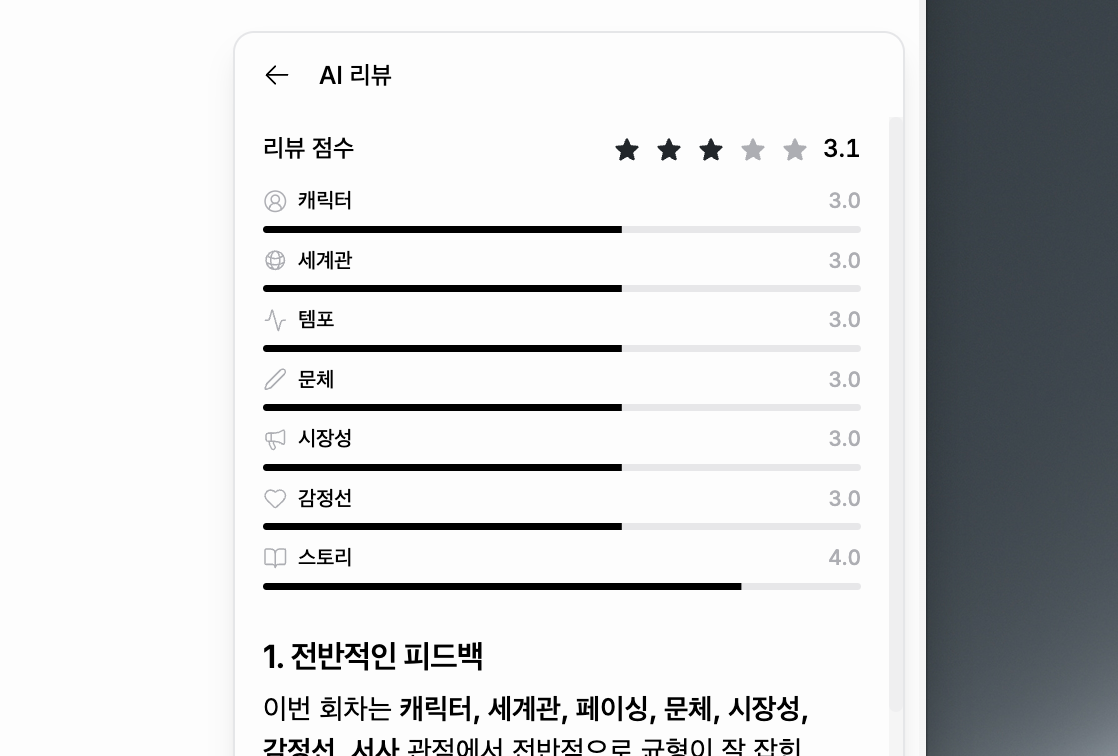
We adjusted the scoring criteria for AI review.

Documents have been scoring higher across the board lately, so we recalibrated the evaluation scale to show the differences between scores more accurately.

Scores may read lower than before. That is the scale moving, not your writing getting worse: the point is feedback that is fairer and that actually tells one draft from another.

Going forward, the difference between good writing and very good writing shows up more clearly.


Table of contents in sheets

Sheets have a document table of contents. It picks up the document's heading structure automatically, so you see the structure at a glance, click an entry to jump to that spot, and whatever you collapsed stays collapsed.

Long worldbuilding documents and character sheets are much easier to navigate.


  • Recalibrated AI review score criteria
  • A table of contents in sheets
  • Tidier onboarding
  • Document word count shown in more places
  • A project save shortcut

  • Steadier document editing
  • Less jitter in tab and panel behavior
  • Better drag and drop behavior
  • Cleaner Korean and multilingual display
  • Smoother document navigation and movement
  • More consistent style and interface
  • Faster and more responsive overall

  • AI review scores may be hard to compare directly with previous versions.
  • The table of contents works from the headings in your document.
v1.0.4desktop

Tabs, and sheet property templates

Move between documents with tabs inside a panel. Fill in sheet properties from a template instead of one at a time.

Tabs

Tabs

Tabs

The project panel has tabs. Splitting the screen isn't the only way to work on two things anymore; you move between documents with tabs.

Switch tabs inside a panel, drag them into a different order, throw one across to another panel. A shortcut opens a new one. Closing the last tab doesn't collapse the layout.

Used alongside split view, moving between several documents finally feels natural.

Sheet property templates

Sheet property templates

Sheet property templates

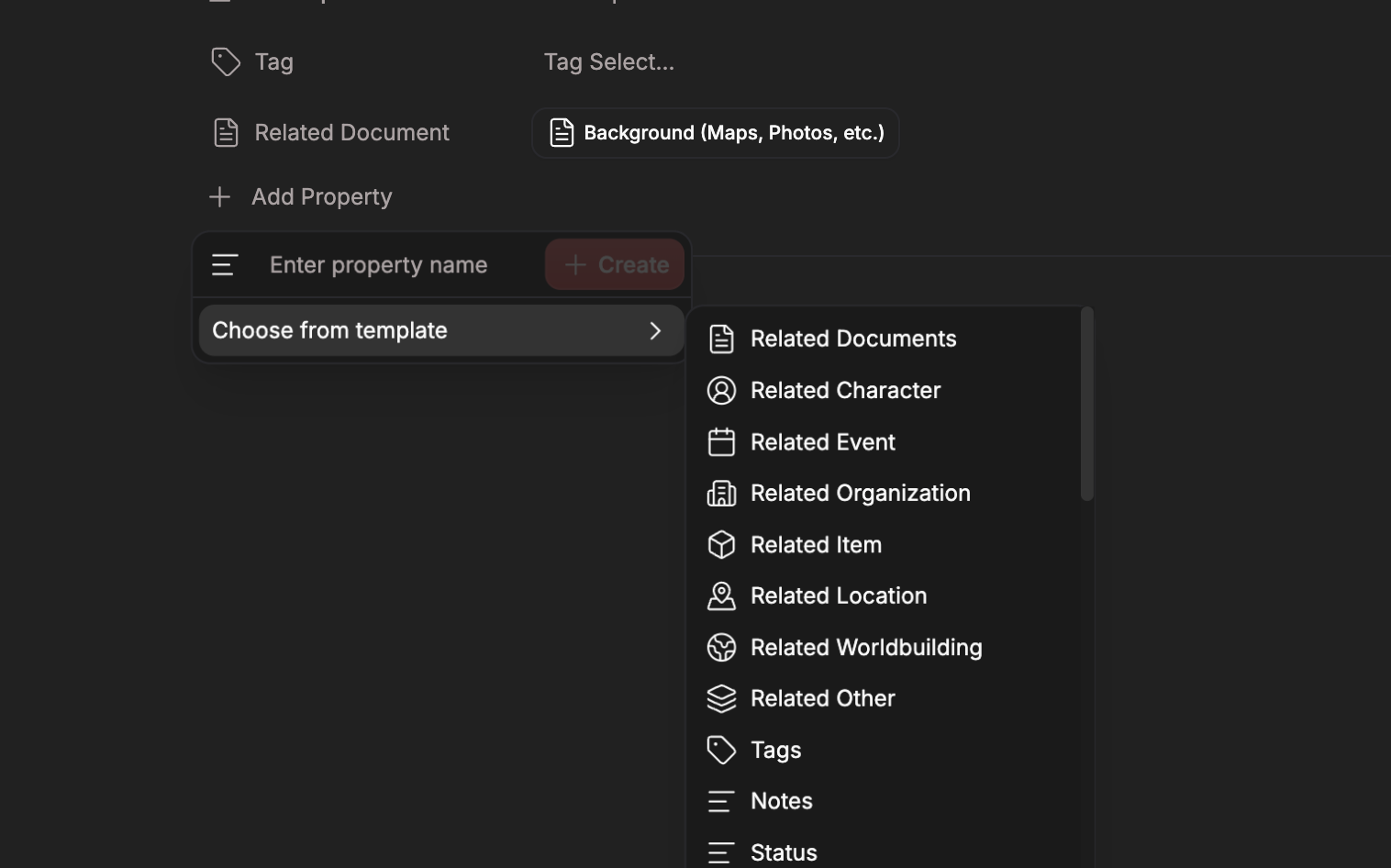
You no longer build a sheet's properties one field at a time. The properties people reach for on each kind of sheet are bundled into a template, and picking one lays out the structure. Template names and descriptions come through in your language.

It shows most on the reference material you write over and over: characters, events, locations.


  • Tabs in the project panel
  • Switch between document tabs inside a panel
  • Drag tabs to reorder them, or move them to another panel
  • Open a new tab with a shortcut
  • Sheet property templates
  • Default property templates per kind of sheet
  • Template names and descriptions in your language

  • Copy canvas content into another canvas
  • Split view and tabs no longer fight each other structurally
  • Clearer drop zones and smoother movement when dragging a tab
  • Closing the last tab leaves the layout alone
  • Invalid drops into an empty panel are blocked
  • Cleaner breadcrumbs in the header, now reflecting the project you're in
  • Steadier tab dragging on mobile
  • Tidier tab focus and window focus handling
  • Panes, headers, and the sidebar look like one another again
  • Better layout and property updating on the sheet detail screen
  • Faster, steadier rendering overall

  • Some split view interactions work differently than before.
  • Tabs live per panel, and reset when you switch projects.
  • The property templates are the built-in ones. Making your own comes later.
v1.0.4desktop

Sheets, editor presets, tables, and slash commands

Characters grew into sheets. The editor picked up presets, tables, and a slash command menu.

The reference structure used to be characters and nothing else. Now it's wider. On the editor side, a few things you were doing by hand got shorter.


Sheets

Sheets

Sheets

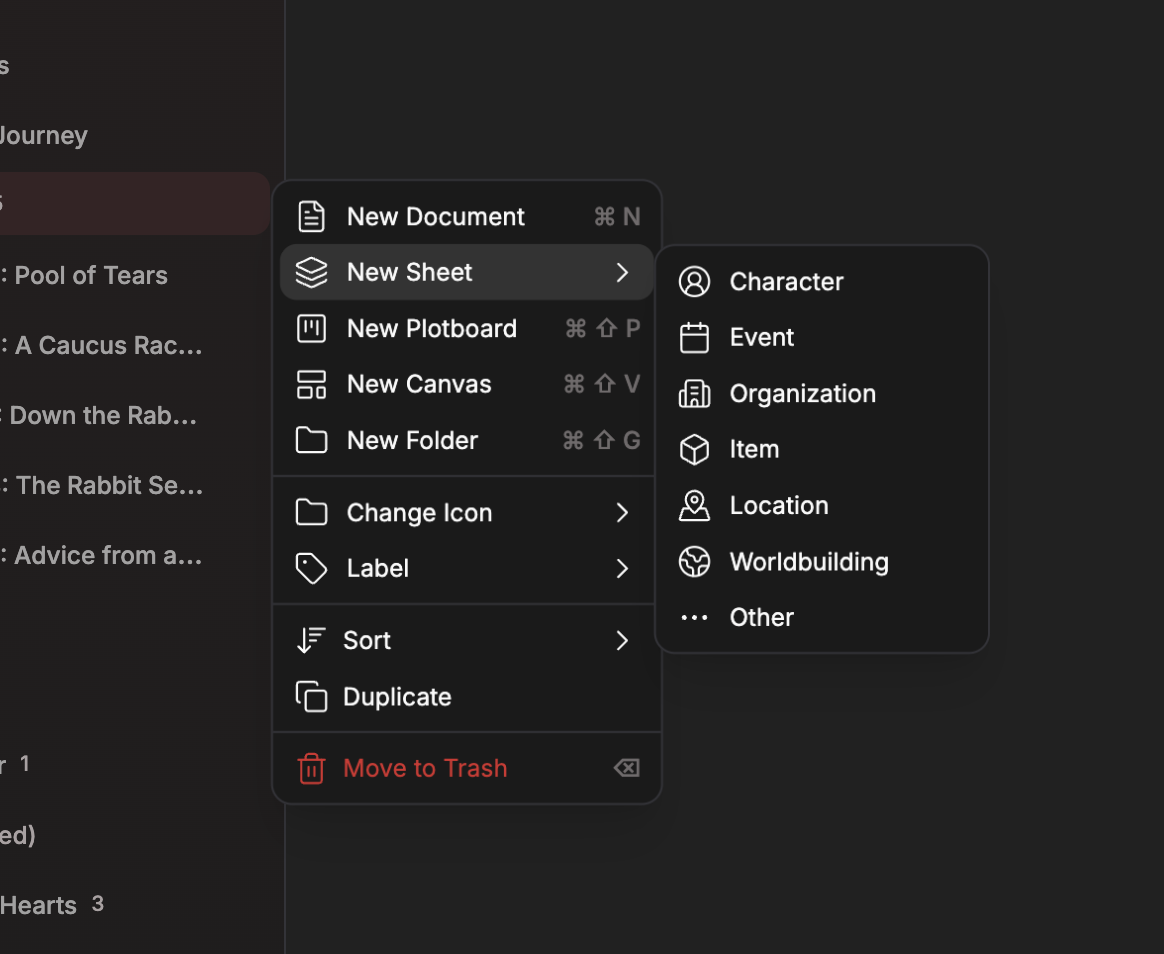
Characters grew into sheets. Anything your project refers back to gets organized the same way a character was:

  • Characters
  • Events
  • Organizations
  • Locations
  • Items
  • Whatever else you name

Read the migration guide first if you're on the old character format. Migration guide


Editor presets

Editor presets

Editor presets

Save your editor settings as a preset and swap between them. Change typeface, layout, and what's on screen in one move, depending on what you're writing that day.

Build your own, keep them, pull them back out later. Settings that used to come loose on their own now stay put.


Tables

Build a table inside the editor. It starts at 3×3, and you edit cells directly or work on rows and columns from the right-click menu.


Slash commands

Slash commands

Slash commands

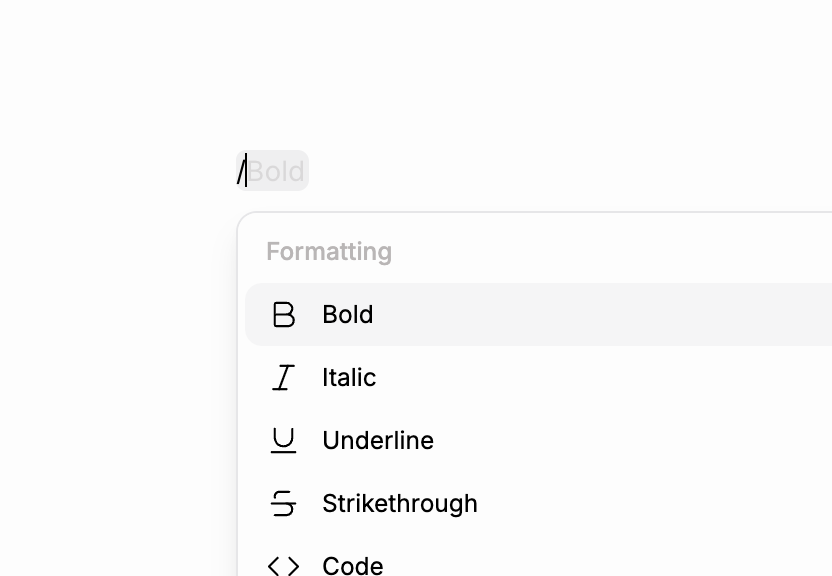
Type / in the editor and the command menu opens. Insert a block, apply formatting, drop in a structural element, all from where you're already typing.


  • Sheets, widening what a project can refer back to
  • Editor presets you save and swap between
  • Tables in the editor
  • A slash command menu, opened with /
  • Hide document titles
  • Pick and manage sheet categories
  • Create and link sheets straight from the editor and the property panel
  • Project templates built out of sheets
  • Create labels and statuses from the command palette

  • App name and identifier are both pensiv now
  • .pnsv files have an association and an icon
  • Steadier editor and database connections
  • Faster project view, with a tidier layout
  • Faster across the app generally
  • Cleaner handling of system fonts
  • Faster changelog screen, with better auto-navigation
  • Less shifting in the mobile layout and editor
  • Font settings sit in a clearer order, and the default font corrects itself
  • Themes save and apply more reliably
  • Rendering holds up across more environments
  • Hanja conversion keeps your recent searches
  • The task creation screen reads more clearly
  • Less flicker while moving between screens
  • Easier to manage references and instructions in AI review
  • Your last AI instructions and references save themselves
  • Better handling of IME composition
  • Drag labels and statuses to reorder them
  • Steadier TXT import and export
  • Rename the default project sections
  • Tidier sidebar

  • The editor vanishing when you changed a setting
  • Content lost during rapid edits
  • Instability when selecting several documents or editing titles
  • A sidebar focus bug

  • The old character structure was widened into sheets internally. Some things may look different after the conversion.
  • Sheets will keep growing, so parts of this workflow will change again in a later update.
  • Editor presets show different options depending on your environment.
v1.0.3desktop

Backlinks, graph settings, filter search, and panel locks

See where something gets referenced from. Tune how the graph looks, lock a search term as a filter, and pin a panel in place.

This one is about surfacing the connections between documents and ideas. Not one file at a time, but how the whole thing hangs together, and staying oriented once a project gets big.

Backlinks

Backlinks

Backlinks are in, in beta. See everywhere a document, character, or plot gets referenced from, in one place.

They gather themselves from your mentions, and you jump straight to any of them.

Graph settings

Graph settings

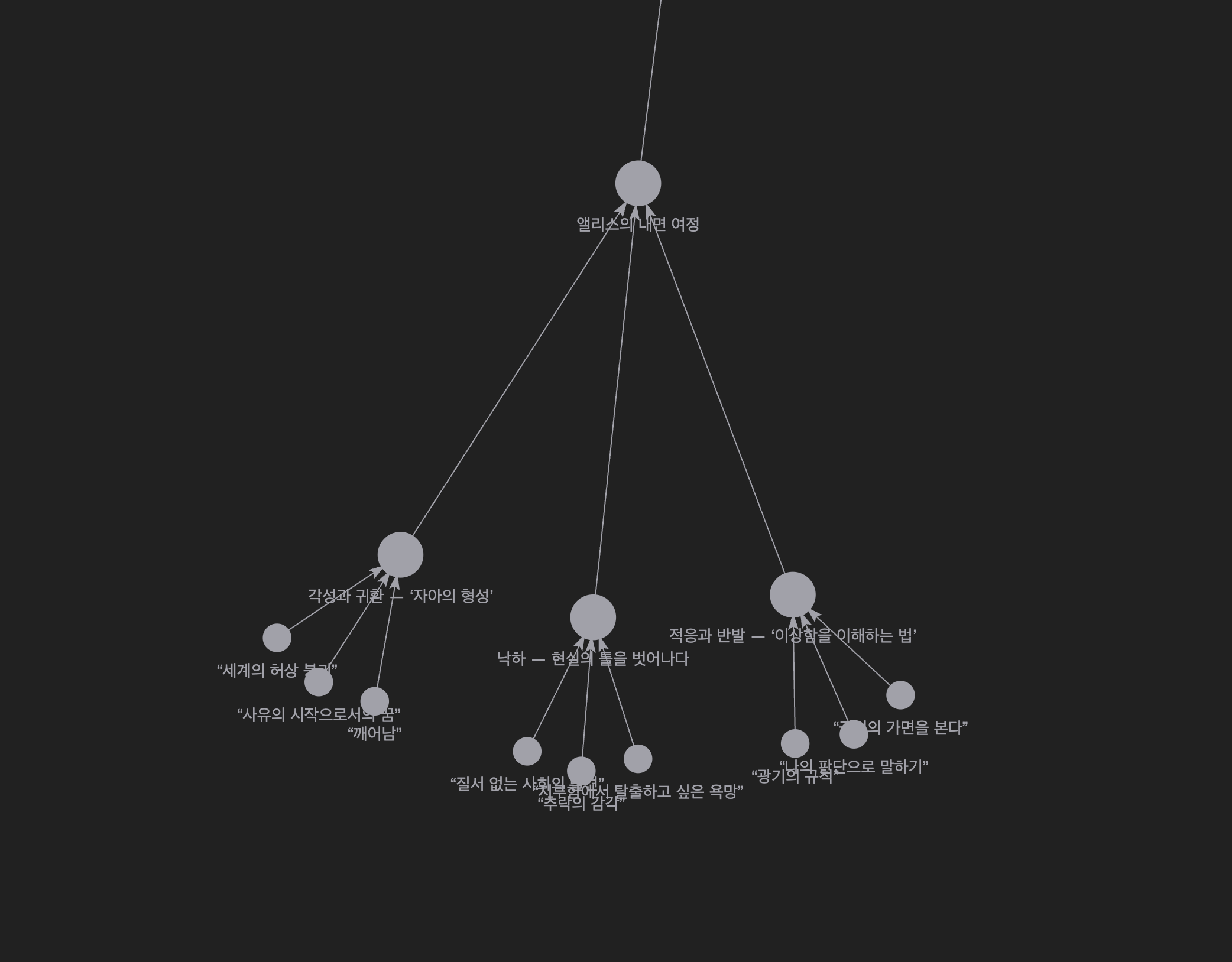
The graph now has settings for how it looks: node size, edge thickness, whether arrows show. On a project with a lot of relationships, the flow reads much better.

Filter search

Filter search

Type a keyword, press Tab, and it locks as a filter. Every search after that runs on top of what you've locked, so narrowing by several conditions at once stops being a chore.

Panel lock

Panel lock

Lock the panels you use constantly. A locked panel fixes the layout, so the screen holds still while you work.

  • Panel lock shortcut: Ctrl + Alt + L, or Command + Option + L on Mac

  • Backlinks, in beta, showing references between documents
  • Node size, edge thickness, and arrow visibility settings in the graph
  • Search that locks a keyword as a filter with Tab
  • Locking for side panels
  • Plot part cards mention anything now, not just characters and documents
  • Create a new item without giving it a title first

  • Steadier sync
  • Adjustable icon sizes
  • Reworked list margins, easier to read
  • Backspace deletes in the file tree
  • Expand icons stay hidden when there's nothing underneath
  • Opening document notes eases the text left on character entries and plot boards too
  • A card or part card made by shortcut lands beside or below the one you were editing
  • Set the spacing between paragraphs
  • Filled in a lot of missing emoji

  • Backlinks are in beta, so some links will be missing.
  • Graph settings aren't saved per project.
  • Internal changes mean some interactions feel different than before.
v1.0.3desktop

pensiv on the web

Open your projects in a browser, no install. Bookmarks became sections, and you now choose your own fonts and backup location.

There have been several short rounds of stabilization since v1.0.3. This gathers them into one place. Little of it is showy; most of it is about not breaking your stride.

The web version

The web version

pensiv on the web is out. Reach your projects without installing anything, and read and write in the same structure as the desktop app.

Web version: https://app.pensiv.so

Bookmarks are gone. Projects are organized with sections now, and only sections.

Font settings

Font settings

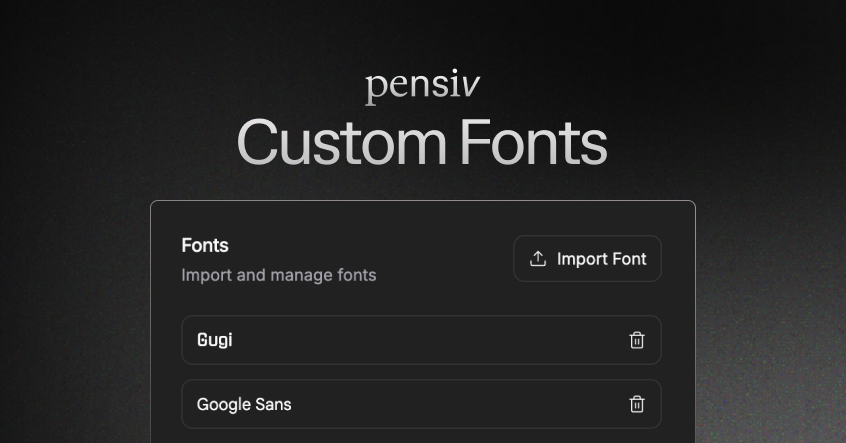
Settings → Fonts brings in a font you already have. System fonts and your own sit in the same list.

Where backups pile up is yours to set too.

  • pensiv on the web
  • Sections for organizing a project, replacing bookmarks
  • Choose where backups are saved
  • Import your own fonts in Settings → Fonts
  • Stopwatch and clock widgets
  • Emoji on file icons
  • Type a character or document name the plotboard doesn't have and that file gets made
  • Shortcuts for new cards and part cards
    • New card: Ctrl + Shift + A
    • New part card: Ctrl + Shift + M

  • Better section management and drag-and-drop in the project sidebar
  • Update notices moved into the sidebar
  • Automatic backups fail less
  • Stronger security around the whole backup path
  • Cleaner document goal handling
  • Opening the side panel eases the text left instead of jolting it
  • Lighter rendering, so the app drains less battery
  • Clearer emoji picker on icons
  • The change dialog behaves the way you'd expect
  • Fixed character map input errors
  • Shortcuts in the sidebar create items under the folder you have selected
  • Quotes and brackets close themselves in character files

  • Tightened content security settings
  • Session handling extended to every kind of file
  • Reorganized the app's internal security structure
  • Steadier Windows packaging and code signing

  • If installing or updating to v1.0.3 gave you trouble on Windows, download the latest installer again from https://pensiv.so/download
  • The web version differs from desktop-only features in places.
  • A lot changed internally, so small details around the app may feel different.
v1.0.3desktop

Organizing with sections

Bookmarks are gone and sections take their place. Underneath, the security and structure that later work will stand on.

Image

v1.0.3 is out. Most of it is the part you don't see: the ground that later changes will stand on. Security got a serious pass, and the structure a few upcoming features need went in ahead of them.

Sections

Sections

Sections are the heart of this one. Bookmarks are gone, and sections take their place.

Group items inside a project, drag them into the order you want, arrange them by context. It goes past collecting the things you use often; it's how you shape the project itself.

The Windows install notification

The Windows install notification

If Windows never showed you an install notification like the one above, download the latest installer again from https://pensiv.so/download

  • Sections, for organizing a project. Bookmarks are replaced and no longer maintained
  • Create, delete, and reorder sections by dragging
  • Update notices moved inside the project sidebar
  • An option to quit the app outright from the tray

  • Drag and drop moves better, and drop zones read more clearly
  • Creating, deleting, and sorting sections behaves the way you'd expect
  • Better memory for the last window position and state, and the status monitor's place
  • Reworked font system, with steadier rendering
  • Sturdier text extraction and error handling on the Hanja page and the profile tab
  • Improvements to Windows packaging and code signing

  • Stronger encryption on backup data
  • Security groundwork for the sync feature that comes later
  • Security cleanup throughout the app

  • Sections stand in for bookmarks, so the behavior will feel different.
  • If installing or updating on Windows gave you trouble, re-downloading the installer is the quick fix.
  • A lot changed internally, so small details around the app look slightly different.
v1.0.2desktop

Goals, and a quieter editor

Set goals per document and per day. Edit from the right-click menu, and let the canvas follow the node you are working on.

This one is about keeping a rhythm without breaking your flow. Goals split into document and daily, and the editing surface got quieter.

Edit or create a node on the canvas and the view follows it. Double-click to go in, ESC to come out. You never have to find your place again.

Settings → Canvas turns auto-focus and auto-zoom off.

The right-click editing menu

The right-click editing menu

The toolbar that used to float up whenever you selected something is gone. You edit from the right-click menu instead, with each option's shortcut listed beside it.

Settings → Editor decides what the menu holds.

The goal widget

The goal widget

A widget now carries a goal for the document and shows how far along you are. Document goals and daily goals run separately, and hitting one sets off confetti, once per document.

Settings → Goal sets a document's goal.

  • A widget that carries a document's goal and shows your progress
  • Daily goals, for managing how much you write in a day
  • Confetti when you hit a document goal, once per document
  • A right-click editing menu in place of the selection toolbar
  • The canvas follows the node you edit or create
  • Canvas node edit mode: double-click to enter, ESC to leave
  • Tidier alignment and positioning for floating widgets

  • Goal settings start switched on, so the first run makes sense
  • Cleaner confetti timing and positioning for the daily and document goal widgets
  • Shortcuts in the right-click menu are written the same way throughout
  • Settings decide whether the selection toolbar appears at all
  • Hint text and auto-zoom hold up better while you edit the canvas
  • Tidier bookmark behavior in the right-click menu
  • Small passes over paragraph spacing, button sizes, and icon alignment

  • Document confetti fires once per document and does not come back.
  • Right-click editing may feel different from the old selection toolbar, depending on your settings.
  • Canvas auto-focus and auto-zoom can be switched off. Left on, the view will move.
  • This update carries a lot of internal cleanup, so small things look slightly different across the app.
v1.0.2desktop

Bookmark sidebar, markdown export, and backups

Drag frequently used documents to the sidebar for quick access. Markdown export keeps more formatting, and backups save where you point them.

Drag bookmarks directly to the sidebar to pin and organize them, or open the bookmark list from the command palette. Export changed too. A document going out to markdown keeps more of its formatting than before, and backups save where you point them.

  • Bookmark scrolling and visual feedback got a pass, so many bookmarks are easier to manage.
  • Paragraphs, headings, quotes, lists, and code blocks all convert more accurately when you export a document to markdown.
  • TAB and indentation stop fighting with auto-closing inside lists, and nested lists come out right.
  • Default sizes for heading formats are worked out more carefully, so documents look consistent.

  • Opening or closing a dialog or the character table no longer recenters the focus position for no reason
  • Changing focus quickly no longer freezes the app
  • List items no longer show stray guide text

  • Bookmarks are currently stored only locally (browser/app storage). Account synchronization or server storage is not supported.
  • When you customize the backup path, backup files go to the folder you chose, so check the save location.
  • Snapshot backups are saved with the specified path and name, and saving with the same name may overwrite existing files.
  • Formatting conversion is better on export, but very special formatting such as complex plugin notation is worth checking by hand.
v1.0.2desktop

Share a link, collect comments

The share button in the header makes a public link, and anyone who has it can comment on the document.

Share Functionality

Share Functionality

Hand someone a link and they can read the document and comment on it. The share screen comes up in Korean by default, with the link preview and the buttons laid out plainly, so inviting someone and confirming what you sent is easy.

Comment Functionality

Comment Functionality

Example document: https://pensiv.so/s/3ShKWOesD9EuzIDt

Notes got a proper editor at the same time, so the writing flow holds steady. There is a title field and rich text, which lets a note carry some structure, and node heights now adjust to content changes in real time.

  • The share button in the header makes a public link, and anyone holding it can comment on the document.
  • Share management lists your invitation links, and you create and cancel them from there.
  • The share popup shows a link preview with tidy text, and reads in Korean by default.
  • The note editor is rich text now, so a title field and body formatting both come with it.

  • The project tree marks which items are shared, so the document list tells you at a glance.
  • Navigation items now show their auxiliary title alongside the main one, which makes them easier to tell apart.
  • File and note nodes align their headers properly, hold a minimum size, and work out their height more reliably, so resizing one by hand leaves the layout intact.
  • Export icons look the same everywhere they appear.

  • Anyone with a share link can leave comments on the document, so check the public scope before you send links around.
  • Notes have titles now, so the ones you already wrote may come up untitled. Fill them in as you go.
  • Node heights change with their content, which can shift a layout around.
  • Only a document's owner, or someone granted the permission, can manage its share links.
v1.0.2desktop

Notes inside the project

Create notes inside a project, filter by tags and colors, and edit tags directly from cards.

Project Notes

Project Notes

Projects hold notes now. A one-line idea and a long memo go in the same place. Narrow the list by tags and colors, edit tags directly from cards, and drag notes in the sidebar to put them in the order you want.


Task Colors

Task Colors

Tasks take colors too, so you can tell them apart the same way you already do with notes.

  • A note list and detail view for creating, viewing, and editing notes within projects
  • Tag editing directly from note cards, with tags already registered in the project suggested automatically
  • Sub-dropdowns that filter the note list by color and by tag
  • Drag notes in the sidebar to rearrange them, and the project's display order follows
  • Colors on tasks, so notes are not the only thing you can tell apart by color

  • Each header (documents, canvases, characters, etc.) shows how many notes are linked to it
  • Folder view and file view keep their toggle state, so you return to the view you use most
  • Local search now includes notes and tasks
  • Arrow keys and Enter move between items and select them in the project settings dialog
  • A new note starts with a default title so you can write immediately, and the dropdown spacing got a pass
  • Bulk deletes clear out the items left behind on your machine, so sync stays clean

  • Notes are stored as project data, so the first use may take a moment for syncing and initial processing.
  • Reordering in the sidebar changes the display order for the whole project. Worth confirming if you share the project with others.
  • Search results now include notes and tasks, so there may be more of them.
  • Colors on tasks help you tell them apart, but any rule you already had that read color a certain way may need another look.
v1.0.2desktop

Export in bulk, and tune the editor

Export multiple documents at once, adjust the accent color and typography, correct spelling by hand, and hand the formatting to a platform preset.

Several documents go out in one pass, the editor's appearance and typography adjust in finer detail, and spell check plus platform presets cut the prep before publishing. Organizing, polishing, and publishing what you've written gets that much simpler.


Multi-document export

Multi Export

Multi Export

Select multiple documents at once and export them in HWP, DOCX, EPUB, TXT, MD formats. Depending on the platform or purpose, choose whether to merge them into a single file or export each document as an individual file.

A long-form work or a series organizes into one manuscript file. Chapter-by-chapter files stay as they are and export in bulk. Publish-ready and archive formats come out of the same run.


Appearance, fonts, and font size

Appearance Settings

Appearance Settings

Adjust the editor's accent color, font, and font size in more detail. Build a reading-friendly environment that matches your working style or genre, and revert to the defaults whenever you need to.

  • New fonts such as Batang, Pretendard, KoPubWorldBatang, Gulim, and more
  • Text size and accent color previewed in real time
  • A reset button that restores all appearance settings at once

Manual spell check

Manual Spell Check

Manual Spell Check

Rather than relying only on automatic suggestions, enter your own correction text and apply it immediately. The writer keeps the final decisions on proper nouns, worldbuilding terms, and intentional expressions.

Suggestions and manual input work together, corrections apply to the document instantly, and an accurate correction takes one pass instead of several.


Platform presets

Platform Presets

Platform Presets

Typography and layout presets tailored to major Korean web novel platforms. Instead of tweaking every setting for each platform's requirements, apply the preset.

  • Munpia
  • Novelpia
  • KakaoPage
  • Joara
  • Naver Series

Change or reset presets at any time, and the write → revise → publish flow gets much simpler.


  • The floating text toolbar that appears when selecting text puts character tools within easier reach.
  • Keyboard shortcuts and the command system now insert images.
  • Simpler export steps and a tidier export dialog.
  • Cleaned up editor interactions: drag-to-delete, auto-resizing, and the like.

  • Steadier input handling for Korean and other CJK text, and steadier keyboard navigation.

  • The appearance reset returns your personal settings to their default values.
  • New fonts and presets change how the document appears, so check a preview before publishing.
v1.0.2desktop

Daily goals, and time that counts as writing

Set a daily goal and keep a widget on it. pensiv tracks the time you actually spend editing.

Daily Goals

Daily Goals

Daily goals arrive in this release, and the editor got better at recording the time you spend writing. Goal settings and progress sit where you can see them, the celebration on hitting a goal behaves itself now, and a few layouts and settings screens got tidied along the way.

  • Set a daily goal in settings and watch your progress against it. Character count is the default unit, so you can keep the goal fine-grained
  • A goal widget that stays on screen for a look at your current progress, and moves wherever you want it
  • pensiv tracks 'active editing time' on its own while you edit, so the figure reflects actual work time

  • The goal celebration fires properly on initial load, and only once a day
  • Cleaner spacing and layout in the project settings screen and the sidebar, so setting items read apart from each other
  • Tuned the height and responsiveness of timers and popovers so they sit better on small screens
  • Steadier breadcrumb and folder path display
  • Daily goal wording now reads in Korean and English
  • Small visual touches across the layout, snowflakes among them, to warm the screen up

  • Editing activity measurement and session-based analysis are still a trial. Numbers may shift, and you decide in settings whether tracking runs at all.
v1.0.2desktop

A timer at the top of the screen

Start and pause a timer from the screen, come back to where you left off, and edit plot cards without a popover.

A timer at the top of the screen

A timer at the top of the screen

After a few days off, we're starting with a small update. The centerpiece of this release is the timer at the top of the screen: start and pause it quickly, and run it on your own settings. When you open the app it returns to the last location you were viewing, and plot card editing is more direct than it was.

  • Start and pause the timer directly from the screen, and select presets to use
  • Set frequently used time presets and a default timer, and they apply automatically next time
  • Multiple notification sounds to choose from, so a finished timer registers immediately

  • The minute hand's state changes read more clearly, so you check progress at a glance
  • Timer-related settings hold to your user environment, which cuts down on reapplying them
  • Open the app and it moves straight to the screen you were previously viewing, and you carry on from there
  • Popover cards are gone from plot card editing and the flow is simpler, so modifications go smoother
  • Graph and sidebar selection respond more stably and predictably

  • When you open the app, it moves to the last screen you opened, so your return location changes immediately.
  • The plot card editing method has changed. If you were used to editing in a popover, give it some time.
v1.0.2desktop

Colors and tags on plot cards

Give plot cards a color and tag them. Sync says how far along it is, and the relationship graph is easier to move around.

Plot Card Color

Plot Card Color

Plot cards and part cards take a color, and plot cards take tags, so you can tell them apart at a glance. Sync is steadier and shows how far along it is. The relationship graph got a visual pass for reading and exploring.

  • Color on plot cards and part cards, to visually distinguish and personalize them
  • Tags on plot cards, for categorization and search
  • New plot boards show up immediately, and restore to the original state if something goes wrong
  • Mouse wheel zoom on the relationship graph, for exploring complex connections

  • Tag editing and display behave more naturally, with fewer stray error notices when you add or remove a tag
  • Tags work in search and filters, so related items turn up more accurately
  • Graph node label visibility and fade transitions are gentler, so labels no longer flicker when you zoom in and out
  • Relationship line styles and interactions got a pass, and tooltip and toolbar positions stay consistent when you hover or select
  • Sync status and progress information read more clearly while a background sync runs
  • Plot part description text handles line breaks properly, which makes it easier to read and edit

  • Colors and tags are not applied automatically to boards or cards you already made. Set them manually if you want them there.
1.0.2desktop

Tasks, inside your projects

Create individual tasks in a project, organize them in lists, open them in detail pages, and drag them into the order you want.

Tasks, inside your projects

Tasks, inside your projects

Projects hold individual tasks now: create one, organize them in lists, and open them in detail pages for review. Reorder tasks by dragging, and adjust priorities faster with filters and batch operations.

Creating and editing a task is more direct and responds faster, and Korean text and date input/display read more naturally.

  • A basic workflow for creating tasks, viewing lists, and navigating straight to detail pages ("Open Task").
  • Drag and drop to reorder tasks in a list.
  • Date handling ties into calendar/date input, so scheduling is more accurate.
  • Updated Korean text, and localized search/result messages.

  • A task appears in the list the moment you create it, so you move on to the next one without waiting.
  • Task lists sync when you open a project, and the state stays current.
  • Delete and restore keep tasks intact, which takes unintended data loss off your mind.
  • Better filter options and search results find the task you want faster.
  • Clearer visual feedback on task items (fade-out, strikethrough, dividers, etc.) and a more consistent layout.
  • A smoother input flow and submit behavior in the task creation dialog.
  • Dragging picks up what you are dropping onto more reliably, and the drag overlay shows it.
  • Task-related preferences persist, so your view of the list stays the way you set it.

  • Task UI behavior and filter settings may differ slightly after the update. Check them once in the projects you're using.
1.0.2desktop

Headers you arrange yourself, and a quicker canvas

Drag header and toolbar items where you want them. On the canvas, copy and paste and a toolbar down the right side.

Header Customization

Header Customization

Header Customization

Organize headers and toolbars directly to place frequently used tools right in front of you. On the canvas, copy and paste along with the right toolbar make the workflow more natural.

Typography Customization

Typography Customization

Typography Customization

Typography is yours to set too. Show only the features you need and hide the unnecessary ones.

  • For each file type (document, character, plotboard, folder, canvas, etc.), rearrange header items via drag and drop and choose whether to show or hide them
  • Edit toolbar items directly and rearrange groups to put frequently used tools first
  • A right toolbar on the canvas for quick access to zoom, undo/redo, and other frequent actions, plus copying (Cmd/Ctrl+C) and pasting (Cmd/Ctrl+V) selected items on the canvas

  • Relationship graph node placement now looks more balanced, and complex connections are better organized and easier to view
  • Dropdowns and tooltips read more clearly while a menu is open
  • Key icons like undo/redo are added and integrated, so the interface stays consistent
  • Menu handling and accessibility for project items and the project tree got a pass, and menus display more reliably
  • More English and Korean strings, making new feature guidance and settings clearer

  • Copy and paste shortcuts only work in the active panel. If you're using another panel, the action you meant may not run.
  • Some header items and controls have moved to the right toolbar for layout reasons, so check where they landed and adjust their positions in your personal settings.
1.0.2desktop

Canvas, and encrypted backups

Make a canvas the way you make any other file and use it right inside a project. Backups can be encrypted as you save them.

Canvas

Canvas

The canvas is a new kind of file. You make one inside a project the same way you make anything else, then place nodes on it, group them, and duplicate them. Undo covers all of it. Backups can now be saved encrypted.

  • A canvas, a visual workspace inspired by Obsidian’s: place nodes, group them, create duplicates. A new canvas starts inside a project the way a new file does.
  • Group and ungroup buttons on the selection toolbar, for keeping a complex structure in order.
  • Duplicating a canvas cascades down the hierarchy, which is how you build a template or branch your work.
  • Backups can be encrypted as you save them, and encrypted backups export and import like any other. (You’ll need the password when restoring.)

  • Undo and redo let you revert a mistake easily. Changes in selection state alone are no longer recorded, so your history stays cleaner.
  • In split-view mode the active panel keeps focus more consistently, so drag and click stay in the area you intended.
  • Group labels restore more reliably, empty input is handled properly, and background color behaves consistently.
  • Deleting a file automatically cleans up the related nodes on the canvas, so your data doesn’t become fragmented.
  • Edits to file titles and descriptions now match the actual file data, which cuts down the confusion.
  • Localized the search box prompt text, adjusted sidebar spacing, smoothed the height animation of file picker dialogs, and refined the back and forward navigation shortcuts.
  • Changelogs show only when the version changes, so you get fewer pop-ups.

  • Encrypted backups require the password (decryption key) when restoring. If you lose the key you cannot restore the backup, so store it somewhere safe.
  • The backup format changed, so older backups may need conversion or extra steps to restore. Keep a separate copy of anything important before you update.
1.0.1desktop

Local-only mode, backups, and a clearer window title

Keep a project on your device, manage backups by hand, and tell your windows apart by their titles.

Local Mode

Local Mode

Turn on local-only mode and a project stays on your device, with nothing going to the server until you say so. Automatic backups keep running either way, and restore holds up better when something has gone missing. The app icon now changes with your theme, and window titles tell you which project you are looking at.

  • Local-only mode stores projects only on your device, so you work without server synchronization.
  • Save, export, import, and delete project backups from the backup management screen.
  • After you turn local-only mode off, trigger synchronization immediately whenever you need it.
  • The app icon changes automatically with your dark or light theme.

  • Window titles reflect the current project and file name, so several windows are easy to tell apart.
  • Automatic backups work regardless of server synchronization status, and you can see when each backup happened.
  • Restore holds up when items are not on the server, cutting the risk of data loss during trash recovery and project restoration.
  • Deleted items carry more detail about the deletion, so more of them come back, and the project deletion dialog validates harder to prevent accidental deletions.
  • Fonts and attached resources load in more ways, so they display reliably across various environments.

  • While local-only mode is enabled, changes are not sent to the server. To synchronize, disable the mode and then trigger a manual sync.
  • Export important changes as backup files regularly, and keep a copy somewhere outside the app.
1.0.0desktop

File notes, folder view, and comparing versions

Leave a note on any file, reach Plotboard and Character files from folder view, and put a past version next to the document you have now.

Thoughts that come up mid-work now have a place to go: a note that lives on the file. Folder view reaches further into a project's structure, and past records sit next to the document you have now.


File Notes

File Notes

File Notes

Leave a note on each file and the thinking that does not belong in the document has somewhere to sit. Keep ideas, revision directions, and reference materials in context, in a space built for writing something down fast.


Folder View Mode Improvements

Folder View

Folder View

Folder view now reaches Plotboard, Docs, and Character files, so more of a project's sub-elements sit inside one flow. Organize them the way you organize folders, and the structure of the work reads at a glance.


Document History Comparison

History Comparison

History Comparison

Put a past version next to the current document and read what changed, and how. Going back to an earlier state is easy from there.


  • Default font size and line spacing save as personal settings
  • Steadier overall layout balance and visual stability
  • Smoother window transitions and notification behavior

  • Some view settings may come back reset after the update.
  • The first time you open history, it may take a moment to sync.
1.0.0desktop

Split preview drag, and a sharper project sidebar

Drag to split the preview and compare two documents, with faster multi-select and new shortcuts in the project sidebar.

Split Preview Drag

Split Preview Drag

Split preview drag is new, and the project sidebar was reworked around it. Shortcuts, multi-select, and the interface behavior around them all got a pass.


  • Split preview drag
    • Drag the overlay to split the view in two while you pick documents
    • Handy for comparing documents while you move through the project structure

  • Offline work and sync, steadier

    • Better handling when something goes wrong mid-edit offline
    • Recovers more reliably after a failed sync
  • Project sidebar

    • Multi-select responds faster
    • Keyboard shortcuts rebuilt
    • A shortcut to collapse and expand root items
    • New shortcuts for project management, with translations to match
    • A few commands removed to keep the interface simple
  • Interface and styling

    • Border colors adjusted
    • General style cleanup, and an updated command palette
    • Changelog loading, styling, and translations tidied up

  • 'pensiv' is written the same way everywhere now, across documents, settings, and logs
  • Sidebar rebuilt underneath, and it runs faster
1.0.0desktop

pensiv 1.0.0 is out

The first official release: AI Review, special characters, editor zoom, and a rebuilt interface

Official release v1.0.0

pensiv is out of beta as official version v1.0.0. Three changes carry the release, and the rest of the product was reorganized around them.

We took the feedback from the beta and worked through stability, data handling, and the document editing experience. Loading a project, saving it, moving to another one: the whole path runs smoother.

AI Review

AI Review

AI Review

AI Review reads your work and gives back feedback on structure and on the writing itself. Reviews stream in as they are written, past reviews stay in a history, and the analysis quotes the passages it draws from. All of it ships in the official version.


Special characters, zoom, and the new interface

Special Characters

Special Characters

A character map inserts special characters, the whole editor zooms in and out, and Home, Project, and Editor were rebuilt from the ground up. The interface reads more clearly and behaves the same way from screen to screen.


  • Improved sidebar drag and drop responsiveness
  • Soft update notification toast
  • Steadier Undo/Redo (Ctrl+Z)
  • Faster AI Review and spell check side panes
  • Focus mode handles input and selection more reliably
  • Sturdier PWA update flow
  • Restyled major parts of the interface
  • More of the app translated into Korean and English
0.3.2desktop

Offline Mode Beta

Keep working with no internet connection. Changes save on your machine and sync once you are back online.

Offline Mode Beta

Offline Mode Beta

Offline mode is here, in beta.

Keep working in pensiv with no internet connection. Everything you change saves on your machine, and syncs on its own once the connection is back.


  • Every feature works without an internet connection
  • Changes save to local storage the moment you make them
  • Sync with the server starts on its own when the connection comes back
  • Anything you edited offline is tracked, so it goes up on reconnect
  • Conflicts resolve automatically: whichever version was saved last wins, going by its timestamp
  • A warning the first time you go offline, covering the beta and what to watch for
  • A live count of how many items are waiting to sync

  • The interface responds right away even while you are offline
  • Steady local storage, backed by a database that lives on your machine
  • Reconnection is detected automatically, and sync starts from there
  • The current sync status is spelled out on screen
  • Work done offline is protected from being lost

  • Offline mode is in beta.
  • On reconnect, the most recent change takes priority.
  • Edit offline on several devices at once and only the last saved version survives.
  • Avoid editing offline on more than one device at a time, so nothing is lost.
0.3.2desktop

Import what you have already written

Open manuscripts and documents you wrote elsewhere in pensiv. HWP, DOCX, EPUB, TXT, and Markdown.

Import brings manuscripts and documents you have already written into pensiv. Your work should carry on from wherever you started it.

pensiv is where new stories begin, but it should also hold the worlds you were already writing. Import is the first step toward that connection.

  • Import files into pensiv
  • Formats you can bring in:
    • HWP
    • DOCX
    • EPUB
    • TXT
    • Markdown (.md)
  • Keeps document structure, line breaks, and paragraph spacing as intact as it can

  • Progress and guidance messages while a file imports
  • Clear feedback on errors that come up while a file is processed
  • Converted documents open straight in the editor, ready to read and edit
0.3.2desktop

Keyboard Shortcuts Improvements

Set your own keyboard shortcuts, including global ones for settings and app control.

  • Shortcut settings
  • Global keyboard shortcuts (settings and application control)
  • macOS shared menu

  • Updated keyboard shortcuts for search
  • Better keyboard shortcut management
  • Improved UI tooltips
  • Updated shortcut key for settings dialog in command palette
  • Tidied up how keyboard shortcuts are handled
  • Internal cleanup for readability
0.3.1desktop

Spell checker, in beta

A Korean spell checker arrives in beta, with 'My Dictionary' and a round of improvements.

The spell checker catches misspellings in your text on its own and suggests a correction. It is in beta for now, and reads Korean only.

  • Spell Checker (Korean-only beta)
  • 'My Dictionary'

  • Improved plot card drag UX
  • Updated plotboard UI
  • Each view remembers where you scrolled to
  • Partial home screen design updates
0.3.1desktop

Client v0.3.1 Update

UI improvements and stabilization work

  • Windows environment UI improvements
  • Onboarding design updates
  • Bullet point fixes
  • Better font handling

  • Tighter content security settings
  • Stabilized hide and exit flows
  • Other stabilization work and bug fixes
0.3.0desktop

Update

New features and improvements

  • Project interaction tour added
  • Profile card download added

  • Separated client window hide & close actions
  • Updated client content security policy
0.3.0desktop

Update

UI changes and new features

  • Personal profile card added

  • Onboarding flow UI changes
  • Work creation UI changes
0.3.0desktop

Update

UI improvements and bug fixes

  • Fixed tag input field deletion bug

  • Updated folder view child file UI
  • Changed shortcuts for global search (Ctrl+Shift+F) and document search (Ctrl+F)
  • Added relationship graph option settings and excluded folder relationships
  • Improved plot card drag UX
  • Improved plot part card edit UX
0.3.0desktop

Update

Bug fixes and UX improvements

  • Fixed label conversion issue in document files
  • Fixed image disappearing on click issue
  • Fixed Korean export issue

  • Improved plot part card drag and relationship setting UX
  • Updated sidebar file list design
  • Fixed indentation logic
変更履歴 - ペンシブ (pensiv)